


Someone just tore down a base three other players spent a weekend building, and your Discord is filling up with screenshots. This is not the moment for a lecture on server philosophy. You need that player gone, and you need a plan so a repeat performance does not happen next weekend.
Apex gives you three layers for exactly this: kick a player out of the current session, ban them so they cannot come back, and, with real limits explained honestly below, control who gets in before trouble starts. This guide covers Palworld server moderation from the exact commands to the exact panel screens, plus the ban list mechanics and the whitelist question most guides gloss over.
Everything below assumes you already have admin access on your server. If you haven’t set that up yet, our guide on how to become an admin on your Palworld server covers it from the start. This one picks up right after.
Kicking a Player
Kicking removes someone from your server right now without deciding anything permanent. They can reconnect the moment they want to, which makes it the right tool for a first offense, a heated argument that needs a cooldown, or someone you are not yet sure deserves a ban.
The command is /KickPlayer <SteamID>, typed into in-game chat once you are authenticated as admin. Run /ShowPlayers first: it lists every connected player’s name alongside two identifiers, their SteamID and a shorter in-game UID. Steam players are simplest to target with the SteamID that Pocketpair’s own command reference uses in its example, but Xbox and PlayStation players do not have one at all, since Palworld’s crossplay runs across Steam, Xbox, PS5, and Mac. For them, use the UID from ShowPlayers instead; KickPlayer accepts either.
A kicked player is not blocked from the server. If the problem is more than a heated moment, banning covers that.
Banning and Unbanning Players
Banning is the permanent version of a kick: the player is disconnected and cannot get back in until you personally reverse it. Use /BanPlayer <SteamID> (or the UID, the same rule as kicking applies) for anyone who has proven a kick was not enough, from repeat griefing to genuinely abusive chat.
Every ban you issue, whether through the command or a manual edit, gets written to banlist.txt in your server’s save folder. That is what the server checks on every connection attempt, and it survives restarts because it lives with your save data rather than in memory. There is no in-game command that prints your current ban list either. So the practical move is to keep your own record as you go: name, identifier, date, reason. Six months from now, a banned player’s friend will ask why they cannot join, and “I don’t remember” is a bad answer to give your own community.
Reversing a ban uses the same identifier: /UnBanPlayer <SteamID>, matching whatever you used to ban them in the first place.
Your Palworld Game Settings screen (Server Configuration > Config Files > Palworld Game Settings) also has a Ban List URL field, which defaults to Pocketpair’s own shared banlist so every official server checks the same list of known cheaters. Point it at your own hosted text file instead if you run more than one server, or moderate as part of a wider community, and every server reading that URL enforces the same bans without you updating each one individually. Change this setting carefully: pointing it at a file the server cannot reach can stop the server from starting.

Whitelisting Your Palworld Server
Palworld does not have a native whitelist. There is no WhitelistPlayer command in Pocketpair’s own command reference, and no whitelist option in the server configuration settings that define Ban List URL, the server password, and everything else you can set. If you have run a Minecraft server before and expect a simple allow-list of names, that assumption does not carry over here: Palworld’s access control works differently, and no amount of digging through menus turns up a setting that is not there.
What you actually get is two gates, and stacking both is the closest realistic equivalent. The first is your server password, set on the Customizations screen (Server Configuration > Customizations) alongside your admin password; share it only with people you actually trust. The second is whether your server runs as a community server, a startup flag on that same Customizations screen. Leave it off and your server will not appear in Palworld’s in-game server browser, so the only people who ever find it are the ones you send a direct connection to yourself.
Neither gate is a persistent allow-list tied to a specific Steam or Xbox account. A leaked password still gets a stranger in until you change it, and a player you only kicked can try again under different credentials. But a password gate combined with a private, non-public server and the ban tools covered above is the realistic version of a Palworld whitelist today, not a single setting with that name.
Apex’s Built-In Moderation Tools
Your Apex panel adds a layer of moderation tooling on top of Palworld’s own commands, useful the moment you want help from someone you trust without handing over your admin password.
Open Server Configuration, then Commands, and you will find every preset in-game chat shortcut Apex has built for Palworld, seventeen in total, each one listed with the Required Role needed to run it and the Chat shortcut that triggers it. Player List (chat shortcut list) needs no role at all, so any connected player can check who is online, while Admin Say (asay) needs the Moderator role, letting a trusted helper broadcast as admin without ever seeing the real admin password. A few presets, Restart and Create Backup among them, need the Administrator role and only run from the panel itself, not in-game.
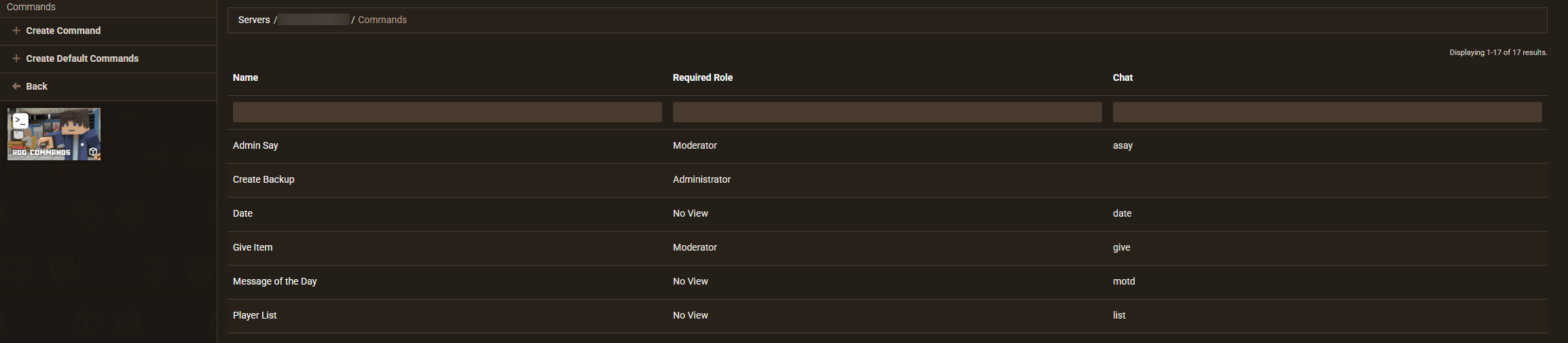
Kick and Ban are conspicuously absent from that preset list. Building either one as a custom shortcut is what Create Command (Server Configuration > Commands > Create Command) is for: you set a Name, a Required Role, a Prerequisite, and the Chat and Run behavior yourself. For most owners, kicking and banning stays with whoever already holds the admin password. The lighter checks and warnings are what the presets are for.
If you’d rather type commands than click through menus, the Console (Server Management > Console) shows your live server log and lets you send commands directly, next to the same Start, Stop, Restart, and Force Stop controls you already use.
Moderation Best Practices
A few habits keep Palworld moderation from resting on one password and one memory.
Assign roles instead of sharing your admin password. The Commands screen’s Required Role column exists for this: give a trusted player the Moderator role for the presets that need it, and they can help with the day-to-day without ever being able to stop or wipe the server.
Keep a ban log outside the game. Palworld will not show you a list of who is banned and why, so a shared document or even a pinned Discord message is the only record you will have when someone asks about it later.
Gate the server with a password even if you also plan to ban troublemakers as they show up. Reacting to bad behavior after the fact is not a substitute for keeping most of it out in the first place.
Back up before anything you cannot undo. A mass ban, a big settings change, or handing someone the Administrator role are all easier to attempt with a recent backup sitting behind them, in case something goes wrong. If the trouble turns out to be technical rather than a person, our rundown of common Palworld server problems and fixes is a good next stop.
Frequently Asked Questions
How Do You Find a Player’s ID?
Run /ShowPlayers in chat while authenticated as admin. It lists every connected player’s name next to their SteamID and their shorter in-game UID, either of which works for KickPlayer, BanPlayer, and UnBanPlayer.
Do Bans Survive a Server Restart?
Yes. Bans are written to banlist.txt in your server’s save data, not held in memory, so they persist through restarts, crashes, and updates until you personally reverse one with UnBanPlayer.
Can You Ban a Player by IP Address?
No. Every Palworld ban tool, whether it is the in-game command or a manual banlist.txt edit, works off SteamID or UID. There is no IP-based ban built into the game.
How Do You Unban a Player?
Run /UnBanPlayer <SteamID> (or the UID you originally used) while authenticated as admin. There is no in-game list of current bans, so you’ll need your own record, covered above, to know who to unban and why.
None of this fixes a server that is unstable to begin with. If yours struggles to keep up with more than a couple of griefer incidents a week, it might be worth a look at what you are hosting on: see our Palworld server hosting plans, or reach out to our 24/7 Support Team if a command in this guide is not behaving the way it should.






















