


The confirmation email landed, your Apex panel shows a server named after your world, and Palworld itself offers few clues on what to do next. That gap, between “the server exists” and “you and your friends are actually playing on it,” is where a fresh Palworld dedicated server setup goes sideways for a some new owners, especially if you claimed yours in the rush after Palworld’s July 2026 1.0 launch.
This guide covers that first hour end to end: finding your server and starting it, connecting to it yourself, setting the two passwords that actually matter, getting friends in the door on whatever platform they play, and protecting the world before you have real hours invested in it. Each section links to a deeper guide where the topic deserves one, and nothing below asks you to open a config file by hand.
Find and Start Your Server
Every Palworld dedicated server setup on Apex begins in the same place: the Server Overview screen. Head towards your Apex server panel, open Servers, and select your Palworld server. Connecting, configuring, and inviting friends all branch off from this one page.
- From your panel’s server list, click into your Palworld server to land on Server Overview, your server’s home screen. RAM and CPU graphs sit at the top, with a status badge and the Start, Stop, Restart, and Force Stop controls directly below.
- Check the status badge first. It might already read ONLINE, in which case there is nothing to click here. If it reads OFFLINE, click Start.

- Give it a minute or two after clicking Start. The dedicated server software has to load, and the badge flips to ONLINE once it’s ready, with the RAM graph climbing off zero as the world actually starts running.
Get Your Connection Details and Connect
Your connection details, the IP address and port, live on the same Server Overview screen. Copy them exactly, and double-check the port before you share it with anyone: on managed hosting, your assigned port is not always Palworld’s default 8211, so use exactly what the panel shows rather than what an older guide might say.
- On Server Overview, find the IP Address:Port field and use the copy icon next to it rather than retyping the address by hand.

- PC players choose Join Multiplayer Game from Palworld’s main menu and paste the address in. If you set a Server Password (covered next), have it ready; the connect screen asks for it separately.
- Console players on Xbox or PlayStation skip the IP field entirely, since consoles cannot connect by typed address. They find your world through Palworld’s in-game community server browser instead, the same mechanism Pocketpair documents in its own server setup guide, which means the Palworld Community Server Setting covered below needs to be on first. Our guide on how to join a Palworld server walks through both paths step by step.
Set Up the Essentials
Before anyone else logs in, spend five minutes on Server Configuration, then Customizations. It covers your server’s public name, both passwords, and who can join, and every change here saves the moment you make it.
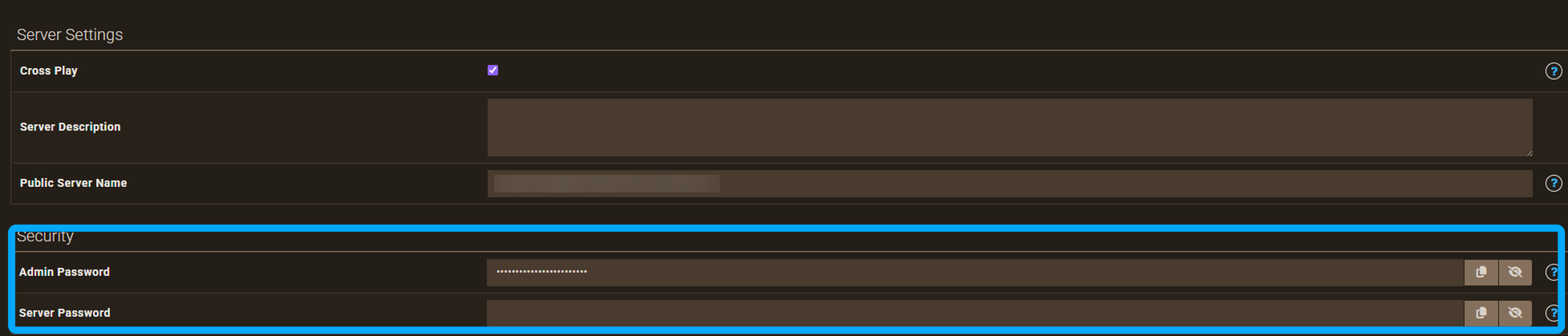
- Under Server Settings, set a Public Server Name players will actually recognize, and add a Server Description if you want your listing to say something about the world beyond its name. Toggle Cross Play on if you want Steam, Xbox, PlayStation 5, and Mac players sharing one world. Palworld has supported crossplay across all four since 2025.
- Scroll to Security and set both passwords: a Server Password if you want the server closed to anyone you have not personally invited, and an Admin Password so you can authenticate as admin from in-game chat later. They are two separate fields with two separate jobs. Customizations saves automatically, but restart the server before those changes take effect for anyone already connecting.
- For the gameplay itself, difficulty, catch rates, PvP, and dozens of other multipliers, go to Server Configuration, Config Files, then Palworld Game Settings. Difficulty sits at the top of the page, and it is a sensible first thing to set. Allowed Platforms, further down the same page, lists exactly which of Steam, Xbox, PlayStation 5, and Mac your server accepts, useful if Cross Play is on but you still want to restrict who connects. Click Save, then restart the server again to load the new values. Our guide on changing your Palworld server’s difficulty covers what each tier actually changes in the world.

Invite Friends and Become Admin
Setting up a Palworld server for friends comes down to one thing more than any setting: whether they can actually find it. PC friends just need your IP and port. Xbox and PlayStation friends can only find a server through Palworld’s community list, and that depends on a single toggle back in Customizations.
- If anyone in your group plays on console, open Customizations, Startup Flags, and turn on Palworld Community Server Setting. This is what makes your world appear in Palworld’s public server browser, the only way Xbox and PlayStation players can find and join it. Leave it off if everyone is connecting by direct IP; there is no reason to make a private server publicly searchable.

- Share your details the way that fits each friend’s platform: IP and port for PC, your Public Server Name for anyone browsing the community list.
- To act as admin yourself, join your own server, open chat, and type /AdminPassword followed by the exact password you set earlier. Admin rights last for that session only, so you will repeat this each time you reconnect, including after a restart. The guides on becoming admin and setting a password go deeper on both if you want the full picture.
Protect Your World
Palworld autosaves on its own. But “eventually” is not the same as “before something goes wrong.” Server Overview’s Advanced Settings section has its own Autosave checkbox, worth a glance to confirm it is checked, plus an Announce World Save option if you want players notified in chat each time a save happens.
Two more panel screens are worth knowing about before you have real hours invested. The Backups screen, under File Management, lets you create a backup on demand or restore an earlier one, and shows the FTP details if you would rather pull a copy down yourself. Get in the habit of a manual backup before anything risky: a big settings change, a mod, a reset. Scheduled Tasks, under Server Configuration, can automate that instead of relying on memory, alongside restarts and other recurring jobs.
Back in Customizations, Disable Auto Updates controls whether your server installs new Palworld patches on its own. Leave it off for a normal server. Pocketpair’s 1.0 release and the bug-fix patch that followed it days later are a good argument for staying current automatically. Turn it on only if you are mid-playthrough on a specific version and do not want an update landing mid-session.
Where to Go Next
At this point you have a running server, a way in, two passwords set, and a plan for friends on any platform to join. The guides linked above go deeper on admin access, passwords, and difficulty tuning than a first hour has room for. And if anything still looks wrong rather than just unfamiliar, our 24/7 Support Team can take a look.
If you are still comparing plans, or thinking ahead to more RAM as your world and your friend list grow, Apex’s Palworld server hosting page has current specs and pricing. Whatever you set up today carries over if you upgrade later.
Frequently Asked Questions
How Many Players Can Join My Palworld Server?
Up to 32, which is Palworld’s officially supported maximum. Your plan’s actual slot count shows on Server Overview under Player Slots, and it’s worth matching that number to what you actually expect. A world with more Pals and structures active at once asks more of your RAM tier regardless of how many slots you are paying for.
Do I Need to Port Forward for My Palworld Server?
No. Port forwarding is a self-hosting problem: Palworld’s dedicated server listens on UDP port 8211 by default, and running it from your own PC means opening that port on your own router. Managed hosting works differently. Apex’s infrastructure already exposes whatever port your server needs, so there is nothing for you to configure.
Is My Palworld Server Online All the Time?
Yes. It runs on Apex’s hardware in a data center, not your own computer, so it stays up whether or not you are logged in, your PC is on, or your internet connection drops. It only comes down if you stop it yourself or your service lapses.
Can Xbox and PlayStation Friends Join My PC Palworld Server?
Yes. Palworld has supported crossplay across Steam, Xbox, PlayStation 5, and Mac since 2025, and the Allowed Platforms setting in Palworld Game Settings controls which of those your server accepts. Console friends still need to find you through the in-game community server browser rather than a typed IP address, which is exactly why the Palworld Community Server Setting toggle matters if anyone in your group plays on console.






















