


Someone is harassing another player in your Palworld world chat, and your community is watching what you do about it. Or you are three hours into a building session and want to force a save before you log off, just in case. Palworld admin commands cover both: chat-typed instructions that let an admin kick or ban a troublemaker, save the world on demand, broadcast a warning, and check who is connected, without stopping the server or editing a config file mid-session.
On a dedicated server, there are three ways to run these Palworld console commands: type them into in-game chat as an authenticated admin, send them through RCON (a remote console protocol), or call Pocketpair’s newer REST API. They are not interchangeable, and one is being phased out, which is where older Palworld server commands lists go stale. Everything below uses current, verified syntax, and it is honest up front that spawning items is not one of these commands.
How to Enable Admin Commands on Your Apex Palworld Server
Admin access on a Palworld dedicated server runs on a single shared password, not individual accounts. You set it once in your Apex Hosting panel, then type it into chat whenever you want to use admin commands. If you are starting from scratch, our guide on how to become an admin covers the full setup; here we focus on the commands themselves.
Head towards your Apex server panel and open Server Configuration, then Customizations, the screen that covers your Palworld server’s security passwords, startup flags, and update behavior. Set the Admin Password there. It is separate from the password players type to join your server, even though both live on this screen.
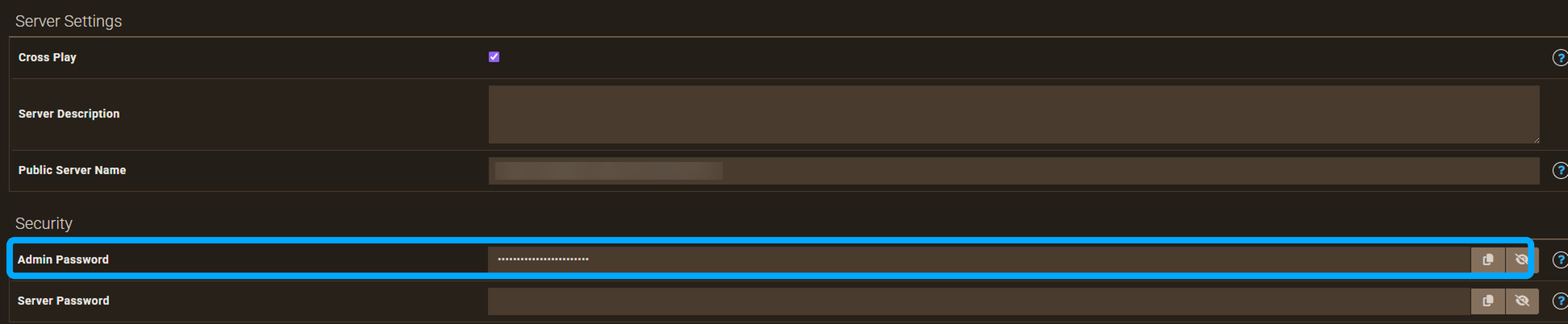
The Customizations screen saves as you go, so once the Admin Password is set, restart the server for it to load before you try to authenticate in game.
Now open Palworld, connect to your server, press Enter to open chat, and type /AdminPassword followed by the exact password you set. Press Enter again and watch for the confirmation message. Admin rights are tied to your session, not your account, so you repeat this step every time you reconnect, including after a server restart.
Full Palworld Admin Command List
Every command below follows the exact syntax in Pocketpair’s official command reference. You type them into chat with a leading slash, and they are case-sensitive: /Save works, /save does not. Run /ShowPlayers first, because several of the other commands need the player identifier it lists.
Player Management
These four commands cover the moderation basics: seeing who is connected, removing someone, and banning or unbanning them.
| Command | Syntax | What It Does |
|---|---|---|
| ShowPlayers | /ShowPlayers |
Lists every connected player, with the name and identifier you need for the commands below |
| KickPlayer | /KickPlayer <SteamID> |
Disconnects a player immediately; they can rejoin unless you also ban them |
| BanPlayer | /BanPlayer <SteamID> |
Blocks a player from reconnecting to the server |
| UnBanPlayer | /UnBanPlayer <SteamID> |
Reverses a ban so that player can reconnect |
The official syntax names the parameter SteamID, but that only helps if the target is on Steam. /ShowPlayers also lists each player’s UID, which works in place of a SteamID for KickPlayer, BanPlayer, and the teleport commands. That matters most for Xbox or PlayStation players, who have no Steam ID.
Server Control
These five commands act on the server itself rather than any single player.
| Command | Syntax | What It Does |
|---|---|---|
| Save | /Save |
Writes the current world state to disk right away, instead of waiting for the next autosave |
| Shutdown | /Shutdown [Seconds] [MessageText] |
Shuts the server down, with an optional countdown and warning message for players |
| DoExit | /DoExit |
Force-stops the server immediately with no save; use it only if something has gone wrong |
| Broadcast | /Broadcast <MessageText> |
Sends a message to every connected player’s chat |
| Info | /Info |
Shows basic server details, such as name and version, in chat |
Save before Shutdown, not after. Neither Shutdown nor DoExit saves on its own. If you remember one command from this whole list, make it /Save.
Teleport Commands
Both commands move a player, but in opposite directions, and they are easy to mix up under pressure.
| Command | Syntax | What It Does |
|---|---|---|
| TeleportToPlayer | /TeleportToPlayer <SteamID> |
Teleports you, the admin, to that player’s location |
| TeleportToMe | /TeleportToMe <SteamID> |
Teleports that player to your location |
TeleportToPlayer moves you. TeleportToMe moves them. Both accept a UID in place of a SteamID, the same as the commands above.
RCON and the REST API: What’s Changing
RCON still works on a Palworld 1.0 dedicated server, but Pocketpair has marked it deprecated and confirmed that it is scheduled to stop functioning in a future update. The replacement is a REST API on TCP port 8212. That distinction matters if you rely on RCON for scheduled restarts, a Discord bot, or any other automation.
RCON is off by default. Turning it on means enabling it in your server settings and confirming a port, typically 25575, alongside the same admin password you already use in game. Once it is on, an RCON client behaves a little differently from in-game chat. RCON commands go through without the leading slash, so you send Save rather than /Save. Broadcast has a known quirk over RCON too: it cuts your message at the first space, so “Server restarting in 5 minutes” arrives as just “Server.” The workaround is to link words with _ instead of spaces, as in Server_restarting_in_5_minutes. Player names with multi-byte characters, common in Japanese or Chinese usernames, can also get truncated over RCON, a limitation Pocketpair’s own RCON documentation acknowledges directly.
The REST API clears up most of this, and Pocketpair is clear that it is the direction of travel. It is just as clear about where the API does not belong: the official REST API documentation warns that these APIs are not designed to be exposed directly to the internet, and recommends a local or private network instead. A full REST API setup is closer to scripting than day-to-day administration, so treat it as its own project.
Apex’s Built-In Command Tools
Beyond the native Palworld commands, your Apex Hosting panel has its own layer for managing in-game chat commands, so you do not have to hand your admin password to every moderator.
The Commands screen, under Server Configuration in your Apex panel, lists every preset in-game chat command, along with the permission role needed to run it and its chat shortcut. It is a quick way to see what your moderators can already do before you change anything.
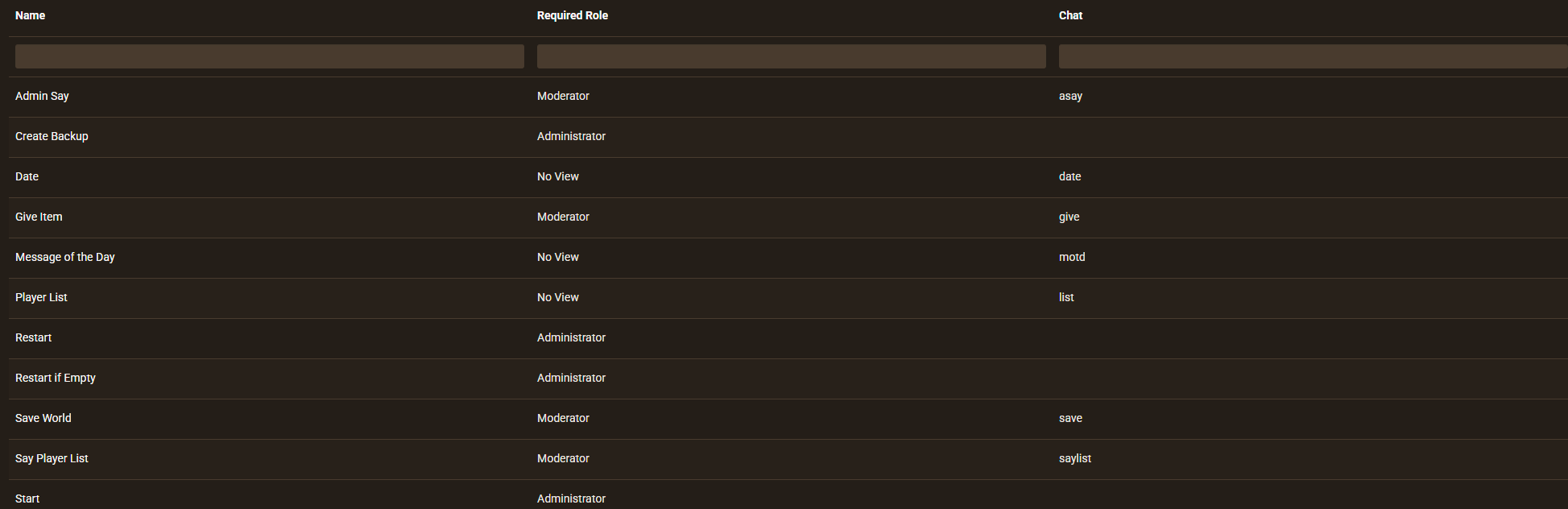
If the preset list is missing something, Create Command (under Server Configuration, Commands, Create Command) lets you build your own: its name, the required role, a prerequisite, and how it behaves when triggered in chat, all without opening a config file. It is a useful middle ground between handing someone the full admin password and giving them nothing.
Do Admin Commands Work on Xbox, PlayStation, and PC?
Yes. Palworld supports crossplay across Steam, Xbox, PlayStation 5, and Mac, and the same admin command set, typed into the same in-game chat, works for an authenticated admin no matter the platform.
The real difference is how console players connect, and how you target them once they are in. Xbox and PlayStation players cannot type a server IP directly; they join through the in-game community server browser instead. Authenticating as admin then works just as it does on PC: open chat, type /AdminPassword and your password, and wait for the confirmation.
Where things get platform-specific is identifiers. Xbox and PlayStation accounts have no Steam ID, so when you kick, ban, or teleport a console player, use the UID from /ShowPlayers instead. Your Palworld Game Settings screen has an Allowed Platforms option that controls which of Steam, Xbox, PS5, and Mac can connect, so a Steam-only or console-friendly server starts there. It is the same config screen where you change your server’s difficulty and other gameplay rules.
Why Your Admin Commands Aren’t Working
Most failed admin commands come down to one of five things:
- Case sensitivity. Palworld commands are case-sensitive.
/Saveruns;/savedoes nothing, and the game will not tell you why. - Missing authentication. Admin rights last only for your current session. Reconnect, or let the server restart, and you have to run
/AdminPasswordagain first. - RCON’s missing slash. In-game chat commands need the leading slash; RCON commands do not. Paste a chat command straight into an RCON client and it fails.
- Broadcast cut short. Over RCON, Broadcast truncates at the first space. Replace the spaces with _ so your whole warning shows.
- RCON on borrowed time. Not a mistake yet, but it will become one. Pocketpair has confirmed that RCON’s shutdown is coming, so any automation still wired to it needs a REST API migration plan before then.
If the trouble is with the server itself rather than a single command, our roundup of common Palworld server problems and fixes is a good next stop.
Frequently Asked Questions
Can You Spawn Items with Admin Commands?
No. Palworld’s native admin command set, across in-game chat, RCON, and the REST API, has no command that gives or spawns items. The Save, Shutdown, Broadcast, and player-management commands above are administration tools, not cheat codes. Spawning items in the world comes down to third-party mods rather than the base game’s commands.
Do Admin Commands Work in Single-Player?
Not in the way this guide covers. This command set, authenticated with /AdminPassword, is built for dedicated servers, and single-player Palworld has no built-in console for it. Running commands offline comes down to third-party tools rather than the base game.
How Do You Unban a Player?
Run /UnBanPlayer followed by that player’s original identifier, the same SteamID or UID you used to ban them. There is no command to list banned players, so keep your own note of who you banned and why.
Managing Your Palworld Server with Confidence
Admin commands turn a Palworld server from something you hope stays stable into something you actively run. Set your password, learn the dozen or so commands that matter, and you can handle a griefer, a graceful restart, or an emergency save without panic.
And if a command does not behave the way you expect, our 24/7 Support Team can help you work through it. If you are still comparing where to run your world, take a look at our Palworld server hosting plans.






















