The holiday season hits different in Minecraft when you swap out the default textures for something festive. Rather than digging through a dozen options, there is one pack that stands out: the New Default-Style Christmas Pack. With over 626,000 downloads and active updates through December 2025, it has earned its place as the go-to Christmas resource pack for Java Edition players. This guide shows you how to download it from CurseForge or Modrinth, install it on the client, set it up on your Apex server, and gives you a full breakdown of what the textures look like in-game.
How to Download
The New Default-Style Christmas Pack is available on both CurseForge and Modrinth. Both platforms host the same pack, so use whichever you prefer. Make sure to download the version that matches your current Minecraft version. If you are unsure, check the version number in the bottom-left corner of your Minecraft launcher.
- Navigate to Default-Style Christmas Pack on CurseForge, then click Files near the top.

- Proceed to locate your desired Game Version in the list below.
- Once found, click the three vertical dots on the right and press Download File.
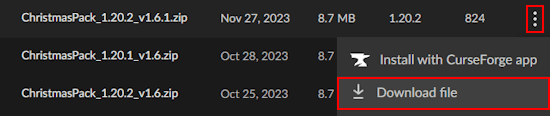
- Save this somewhere easily accessible on your computer for later.
Client Installation
Installing the Christmas pack takes a few minutes. The process is just dropping a zip file into the right folder. Some players use Optifine for additional visual effects like connected textures, which this pack supports. For 1.20+ versions, Sodium combined with Iris Shaders is another option if you are looking for better performance alongside shaders. Both are optional and not required for the pack to work.
- Launch Minecraft and select Options from the main menu.
- Continue to click Resource Packs, then Open Pack Folder.

- Drag and drop the downloaded file into the newly opened folder.
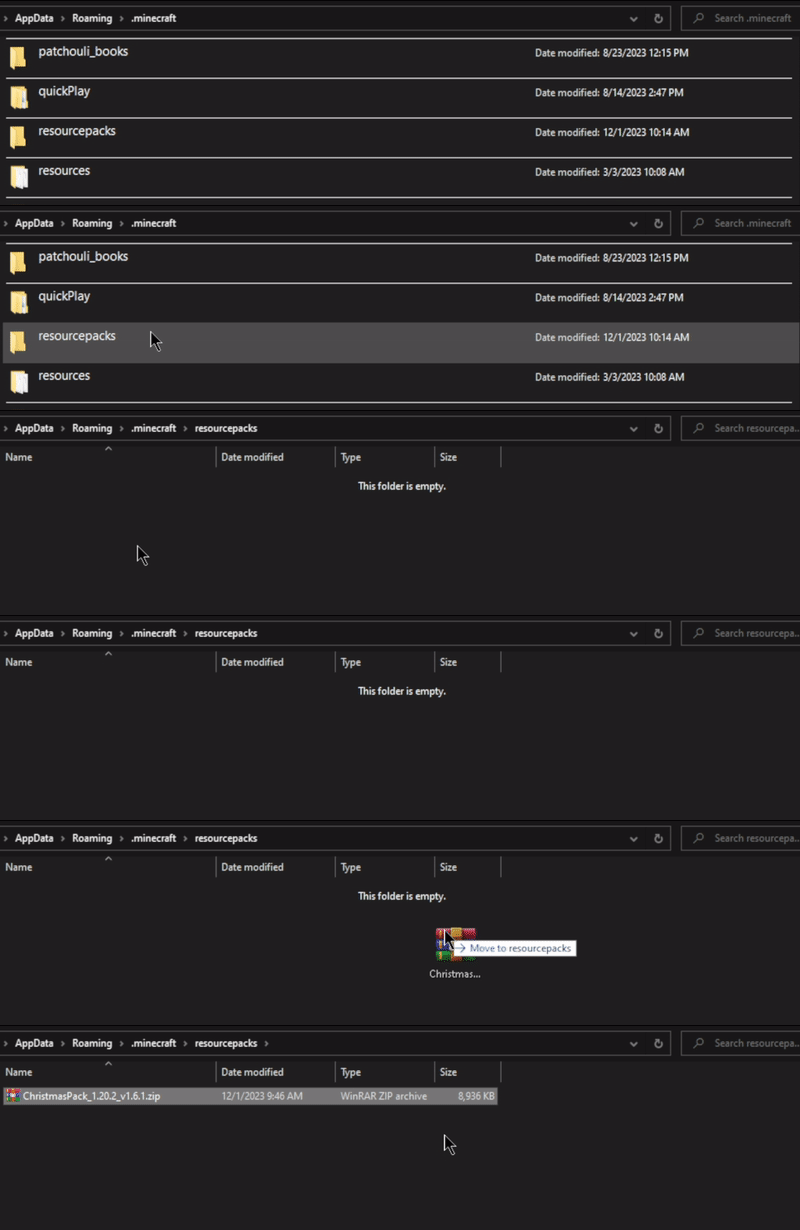
- Return to Minecraft and press the Arrow icon on the pack.

- Click the Done button and wait for everything to load properly.
Server Installation
If you want every player on your Apex server to load the Christmas pack automatically, you can push it from your server panel. This uses Minecraft’s built-in server resource pack feature, which sends the pack URL to connecting clients. Here is how to set it up:
- Upload the downloaded zip file to a file hosting service that provides a direct download link. Dropbox (set to shared link, replace
dl=0withdl=1) or Google Drive with a direct link generator both work. Copy the full download URL. - Log in to your Apex server panel and open your server.
- Click “
Files” in the side menu, then open “server.properties.” - Find the “
resource-pack” line and paste your direct download URL as the value. - Set “
require-resource-pack” to “true” if you want players to be forced to accept it before joining. - Save the file, then restart the server.
Players who join after the restart will receive a prompt to download and apply the pack. If you need help, our 24/7 Support Team is available.
Texture Showcase

Loading into a world with the New Default-Style Christmas Pack active is a noticeable shift. The landscape converts to a snow-covered version of itself, with changed block textures across grass, leaves, and water. Decorated doors, iron bars strung with lights, and gift-wrapped chests replace the standard versions. Mobs join the theme too, with iron golems wearing Santa hats and pigs sporting red noses. The pack was last updated in December 2025 (version 3.2 for Minecraft 1.21.x) and continues to receive new additions each holiday season.
Festive Environment
The overworld gets a complete seasonal makeover. Grass blocks convert to snow-topped versions, forest and jungle leaves change to red, green, and gold variants, and spruce trees gain string lights on their leaves. Rivers appear icy, and snow already covers the terrain even in biomes that normally don’t see it. Desert biomes and underground areas remain unchanged, so the contrast is especially strong when moving between biomes.

Gift Blocks

Chests and shulker boxes get wrapped in gift paper with ribbons, and each color variant of the shulker box becomes a different present. This makes storage rooms look like Christmas morning. Players on SMP servers often use these as actual gift exchanges, hiding items inside decorated boxes for friends. It is one of the more practical visual changes in the pack.
Christmas Decorations
The pack adds several decoration-style texture changes that work well for building. Spruce leaves double as tree branches, iron bars look like string lights, and there is a unique beacon star texture. Combined with gift-wrapped chests and wreath block textures, players can build a convincing Christmas tree inside Minecraft without any extra mods. For Christmas modpacks, this pack layers well on top to add the visual theme.

Holiday Mobs

Mob retextures are one of the more memorable parts of this pack. Endermen wear candy cane socks and mittens, pigs have red noses, slimes take on a jelly candy appearance, and creepers and iron golems get holiday-specific redesigns. Not every mob is retextured, but the ones that are create moments worth showing others on a server. The pack creator continues to add more mob changes with each update.
Resource Pack FAQ
This appears when the downloaded pack version does not match your Minecraft version. Go back to the CurseForge or Modrinth page, click Files, and download the file labeled with your exact Minecraft version. For example, if you are on 1.21.1, download the 1.21.1 file. The message can usually be dismissed without issues if you are close to the supported version, but downloading the correct file removes it entirely.
Follow the server installation steps above. Set “require-resource-pack” to “true” in your server.properties file. Players who decline the pack prompt will be disconnected. Players may need to re-add the server to their list after this change is applied.
Yes. Follow the how to combine resource packs guide for step-by-step instructions. When stacking packs, the one at the top of your active list takes priority for any conflicting textures. The Christmas pack works well as a base layer with other packs placed on top.
Useful Links
New Default-Style Christmas Pack on CurseForge
New Default-Style Christmas Pack on Modrinth
Deck the Halls: Top 3 Minecraft Christmas Modpacks