


For those who want to make backups or use their Valheim server world in singleplayer, you’ll need to download the world files. With the latest version of the game, this process is extremely simple. All that’s required is to access the server files, compress and download the world folder, and import it to your local game files. In this Apex Hosting guide, we’ll show you how to save a world from your Valheim server and upload it to singleplayer 👏
Downloading Your Valheim World
- Head towards your Apex server panel for Valheim.
- Navigate to
File Management > FTP File Access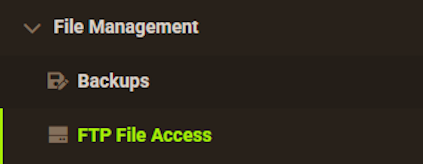
- Open
worlds_localand find your world folder.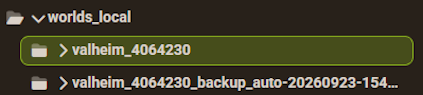
If you don’t know the name, check
Worldin the main panel. - Right-click the world and select the
Compressoption. - Click
Create Archiveand a zip folder will be created.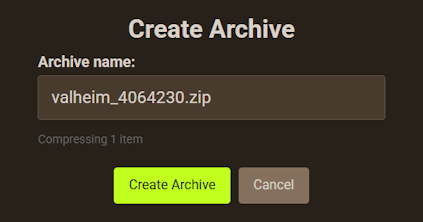
- Right-click the zipped world folder and press
Download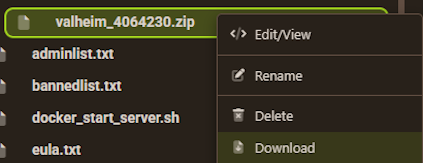
- Save this somewhere easily accessible on your computer.
You may also use a third-party FTP program to download your world.
Importing Your Server World to Singleplayer
⚠️ We recommend using 7-Zip or WInRAR to extract zip files on your computer.
- Have your downloaded Valheim server world zip file ready.
- Press the
Windows Key + Ron your keyboard. - Copy & paste:
%APPDATA%\..\LocalLow\IronGate\Valheim\worlds_local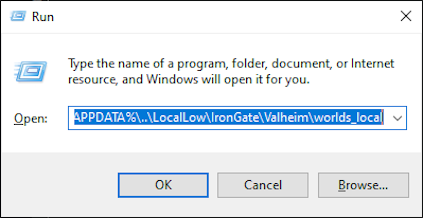
- Move the world zip file into this directory.
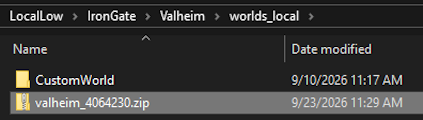
- Right-click the zip file and click
Extract Hereor a similar option. - Open the extracted folder and check for .chunks, .db, and .fwl files.
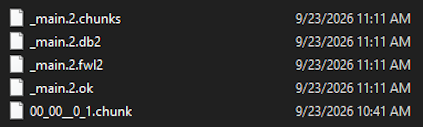
If you see them and other chunk files, then it was successful.
- Launch Valheim and you should see the world in the selection list.
Common Issues
I’m unable to download my server world folder
In cases where you cannot compress and download your world folder from the server, we recommend using an external tool to do it. These include FileZilla or WinSCP, which are FTP programs. This enables you to use your FTP login information to gain access to server files and to manually download them.
I cannot access the worlds_local folder on my computer
If you cannot access this folder, then try %APPDATA%\..\LocalLow\IronGate\Valheim in the Run window (Windows Key + R). This should bring you to the main directory for your local game files. Create the worlds_local folder and proceed normally with the instructions. However, that assumes you’ve installed the game in the default directory. If you previously configured a custom folder for these game files, access them instead.
My world isn’t loaded in Valheim
Return to the worlds_local directory on your computer and open the extracted world folder. Double-check that you see all the .chunk, .db, and .fwl files. If you see another folder with your world’s name, then you need to move all the files inside of that in the main world folder OR redo the extraction via 7-Zip or WinRAR.






















