


You marked a location, came back later, and now you have no idea where it is. In a world without limits, that is a real problem. The solution is teleporting directly to coordinates — a precise, instant way to move anywhere in Minecraft without wandering. This guide covers how coordinates work, how to run the TP command on Java and Bedrock, and which mods and plugins give you coordinate access without pressing F3 every few seconds.
Minecraft Coordinates Explained

Coordinates in Minecraft are three numbers that identify the exact position of any block in the world. Every location has an X, Y, and Z value. Y is vertical — it tells you how high or low you are. X and Z are horizontal, covering north-south and east-west movement. All three values can be positive or negative, with 0, 0, 0 as the world’s origin point.

To view coordinates in Java Edition, press F3 on your keyboard. Your current X, Y, and Z position appears in the debug overlay. On Bedrock Edition, coordinates are hidden by default. Enable them by running the following command with cheats active:
/gamerule showCoordinates true
Once enabled, your coordinates display on screen at all times. Write down the coordinates of any location you want to return to — that value is what you will use in the TP command.
Teleporting to Coordinates in Minecraft
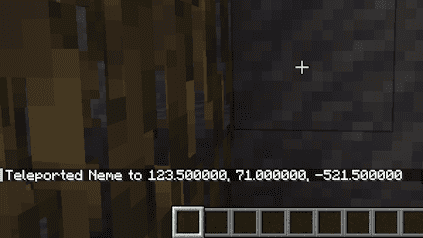
Teleporting to coordinates requires cheats enabled in singleplayer or operator permissions on a server. To enable teleport on your server, an admin needs to grant the appropriate permission. Once you have access:
- Open your in-game chat.
- Type the following command and press Enter:
/tp [X] [Y] [Z]
Replace [X], [Y], and [Z] with your target coordinates. If you want to keep your current Y-level the same, use the tilde symbol (~) as a placeholder for that axis:
/tp 150 ~ -300
This teleports you to X=150, your current Y-level, and Z=-300. The tilde works for any axis where you want to preserve your existing position.
On servers, operators can also teleport other players to coordinates:
/tp [player] [X] [Y] [Z]
If you need to set up operator access first, see the guide on how to OP yourself in Minecraft. For singleplayer, see how to enable cheats.
Coordinate Display Mods, Plugins, and Datapacks
The F3 debug screen in Java shows a lot of information at once, which can be distracting during normal gameplay. Bedrock’s coordinate display requires the gamerule to be active. Either way, several add-ons make coordinates more accessible:
- Optifine — A popular Java mod with a built-in coordinate HUD option that displays cleanly without opening the debug screen.
- InfoHUD — A lightweight mod focused specifically on coordinate and status display.
- Batty’s Coordinates PLUS — Adds a minimal coordinate overlay with extra navigation info.
For server environments, plugins can display coordinates to all players or specific permission groups. Datapacks offer a no-mod alternative if you want coordinate access without installing client-side mods.
Why Coordinates Matter
Coordinates are useful beyond just finding your base. Here are the most common applications:
- Stronghold tracking — Once you find the stronghold, write down the coordinates so you can return without using Eyes of Ender again.
- Death recovery — On servers without keep inventory enabled, your death coordinates let you teleport back to retrieve your items before they despawn.
- Base and landmark navigation — Share coordinates with other players so they can teleport directly to farms, spawn, or points of interest.
- Structure locations — Villages, ocean monuments, and other structures are easier to revisit when you save their exact coordinates.
Conclusion
Teleporting to coordinates in Minecraft is straightforward once you know where to find the values and which command to run. Press F3 on Java or enable showCoordinates on Bedrock to get your current position, then use /tp [X] [Y] [Z] to move instantly to any location. The tilde symbol keeps any axis at your current position when you only need to move on one or two axes.






















