


Overview
A server password keeps most strangers out of your Valheim server, but it does nothing once that password gets passed around. A whitelist closes that gap. Add a player’s ID to the permitted list and the server checks every connection against it, turning away anyone who isn’t on the list, password or not. This guide covers how a Valheim server whitelist and password work together, how to find a player’s Platform User ID, and how to add and manage that list from your Valheim server panel.
How the Whitelist and Password Work Together
The password and the whitelist do different jobs. The password decides whether someone who has your server address can connect at all. The permitted list decides which specific players get in. As soon as permittedlist.txt contains a single entry, the server refuses every player who is not on that list, even if they typed the correct password. That makes the whitelist the stronger control: a leaked password stops mattering once the permitted list is active, because the server is checking IDs, not just the password. An empty permitted list removes the restriction, and the server goes back to accepting anyone who knows the password.
Finding a Player’s Platform User ID
Before you can add a player, you need their Platform User ID. Valheim shows this ID in the server log and in the F2 panel inside the game, and it always follows the format [Platform]_[User ID], case sensitive. Get the exact string from the player or the log rather than typing it from memory, since a single wrong character keeps them locked out.
Steam Player IDs
Steam players carry a Steam-prefixed ID: Steam_ followed by their 17-digit SteamID64. Ask the player to open the F2 panel while connected, or read the same value from the server log after they connect.
Crossplay Player IDs
Servers running the crossplay backend accept players from other platforms alongside Steam. Those IDs use a different platform prefix, such as Xbox_ for an Xbox player. These can be captured by making the server public briefly, allowing the player to join the server, then viewing the server log. A server running only the Steam backend cannot see or accept crossplay players at all, so double-check which backend your server uses before troubleshooting a crossplay player’s login.
Adding Players to the Whitelist
Head towards your Apex server panel and select your Valheim server. The permitted list lives in the Config Files section, and the same steps work for the admin and banned lists too.
- Click “
Server Configuration“, then “Config Files“. - Select the “
Valheim Permitted List” to open it in the file editor.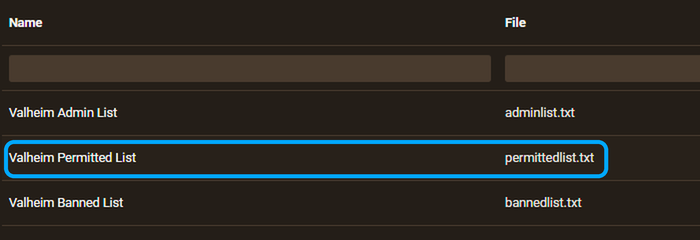
- Add one Platform User ID per line for every player you want on the server.
- Click “
Save” to store the changes. - Return to your server page and click “
Restart” to apply the updated list.
Managing the Whitelist Later
Adding or removing a player later takes the same route: open Server Configuration, then Config Files, then the Valheim Permitted List. Add a new line for a new player, or delete a line to remove one, then save and restart the server so the change takes effect. Clearing every line from the file lifts the restriction entirely and returns the server to accepting any player who has the password, so empty the whole list only if that is the behavior you want.
Troubleshooting a Valheim Whitelist
A player who should be on the list but still cannot connect is almost always a formatting problem. Double-check that their Platform User ID uses the exact [Platform]_[User ID] format, case sensitive, with no extra spaces, and that it sits on its own line rather than sharing a line with another ID. If the list looks correct, confirm the server was restarted after the save; restart the server to apply any edit to the permitted list.
A player on a different platform, such as Xbox, cannot join a server running only the Steam backend no matter what the permitted list says. That server needs the crossplay backend enabled before a non-Steam ID means anything. And if the ID, the format, and the backend all check out, our 24/7 Support Team can look at the server log with you to find the rejection.
Conclusion
A whitelist is a stronger control than a password alone: only the Platform User IDs you add can join, no matter who else has heard the password. Once you know how to find a player’s ID and where the permitted list lives in your panel, keeping the roster current takes a couple of minutes each time someone new wants in.






















