


Overview
As the owner of a Minecraft server, problematic players are a constant threat that needs to be dealt with. Most of the time, however, players will not dare to break any rules while staff are online. Whether you are trying to catch a player X-Raying, griefing, or anything else, you’ll need to catch them without revealing yourself. This is brought to the next level with SuperVanish, a Minecraft plugin that causes your player to entirely disappear from sight. You will be undetectable to both players and mobs, removed from the list of online players, and much more. Installing plugins is streamlined with our Apex Hosting panel, so we have created this guide to show you how to get started.
Summary
SuperVanish is created by MyzelYam on Spigot, with over 734,000 downloads at the time of writing. The first release was made in October 2014, with the plugin ranging from version 1.7 up through 1.19. SuperVanish allows you to vanish from your server, making players believe you are not online.
Modbox Installation
IMPORTANT: Make sure to have Spigot or Paper selected in the Game File option on your server panel so plugins can work properly.
- Head towards your Apex server panel for the server.
- Navigate to
Server Configuration > Modboxon the left.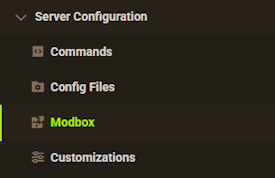
- Choose the version and search for the plugin you want, then select it.
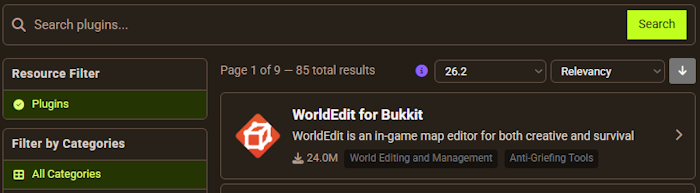
- Click
Installon the left and wait for it to be installed. - Restart the server to load the plugin. Repeat this process for any other plugins.
Manual Installation
Download SuperVanish on Bukkit or Spigot and follow these steps:
- Download the plugin file from the link above.
- Head towards your Apex server panel for the server.
- Locate the Game File option, then select Spigot or Paper if you haven't already.
- Navigate to
File Management > FTP File Accessand login. - Drag + drop the .jar file in the
pluginsdirectory. Alternative: Click theUploadbutton and select the file. - Wait for this to finish, then return to the main panel.
- Restart the server and the plugin should load properly once you join.
Getting Started
Without any additional configuration, using SuperVanish is as simple as using a single command. However there are various other features, configurations, and more that may be of interest to server owners:
Vanishing from the Server

To get started, you can use the /vanish command from in-game. This will instantly cause your player to disappear from sight and even provide a fake logout message. During this time, you will have night vision and will notice quite a few server changes:
Vanished Features
Complete Invisibility


The main feature of the SuperVanish plugin is, of course, the ability to completely vanish. While active, you will be entirely undetectable to players. While collision is enabled for yourself, players can not be moved by those who have vanished.
Removed from Online Players

Being vanished would be mostly pointless if you were still listed as being online. Luckily, vanished players are not listed on the in-game tab menu and are even absent from the online players in the server list. This can be especially helpful if you are trying to keep an eye on potential rulebreakers, as they cannot tell if any staff is online.
Ignored by Hostile Mobs
It would be quite strange to see a creeper explode without warning, so hostile mobs will completely ignore your presence. While this furthers your ability to remain undetected, this can also be very helpful if you need to step away from the game but don’t want to leave the server entirely. It can also benefit farms, as the chunks around you will remain loaded.

Commands & Permissions
| Command | Permission | Description |
|---|---|---|
| /sv help | N/A | Displays a page with various SuperVanish commands. |
| /sv [on/off] | sv.use.[levelX] | Turn vanish mode on or off for yourself with an optional level priority. |
| /sv [on/off] [Player] | sv.others | Turn vanish mode on or off for another player. |
| /sv reload | sv.reload | Reloads the configuration file for SuperVanish. |
| /sv list | sv.list | Displays a list of currently invisible players. |
| /sv login | sv.login | Broadcasts a fake login message. |
| /sv logout | sv.logout | Broadcasts a fake logout message. |
| /sv recreatefiles | sv.recreatefiles | Recreates outdated config files. |
| /sv tipu | sv.toggleitems | Toggles item pickup per player. |
| /sv stacktrace | N/A | Logs information for reporting issues. |
Additional Permissions
| Permission | Description |
|---|---|
| sv.see | Allows you to see vanished players. |
| sv.see[.LevelX] | Allows you to see vanished players with a lower sv.use.[LevelX] number. |
| sv.keepfly | Whether players keep their ability to fly after exiting vanish mode. |
| sv.notoggle | Prevents having your vanish mode toggled by other players. |
| sv.silentchest | Allows vanished players to open chests silently. |
Configuration

There are many additional settings that can be adjusted within the SuperVanish config file. Change hunger settings, night vision, mob targeting, and much more. This will allow you to fine-tune the plugin to fit your desired setup.
- From the Apex panel, enter the
FTP File Access. - Afterwards, click the
pluginsfolder, followed bySuperVanish.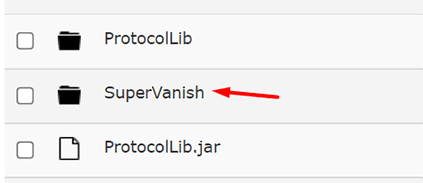
- Locate the
config.ymlfile, then pressEditto the far-right. - Adjust any of the desired settings, then press
Save.
- Finally, restart the server to load the config changes.
Common Issues
Plugin commands are not working:
When this occurs, it often means that the plugin is either not installed correctly or the server is not running the correct version. First, try to use the “/plugins” command from in-game. If the command doesn’t exist, ensure your server is running Paper or Spigot, then try again. If no plugins are listed within the command, make sure that SuperVanish has been installed directly into the plugins folder. If it is located anywhere else, the server will not load it.
I’m still in the playerlist and cannot open chests silently:
While SuperVanish will function on its own, it requires ProtocolLib to use all of its features. Additionally, you will want to install the dev build version, especially if you are running 1.19 versions. Once done, upload the .jar into the plugins folder alongside SuperVanish, then restart the server once more.
Helpful Links
SuperVanish Spigot Page
How to Add Plugins to a Minecraft Server






















