Your friend’s base is somewhere past 4,000 blocks east, and nobody wrote down the coordinates. Xaero’s World Map fixes that with a fullscreen map that draws itself as you explore. The first question most server owners ask is whether the server needs the mod too. It doesn’t, and this guide shows when a server install is still worth the effort.
What Xaero’s World Map Does
Press M and the mod opens a fullscreen map of everywhere you’ve explored. It writes itself as you play, so there’s no paper map to craft. Drag the map with your mouse and zoom with the mouse wheel. The screen lists its controls in a tooltip, and you can rebind many of them. The mod runs on Fabric, Forge, NeoForge, and Quilt, according to the developer’s Modrinth page.
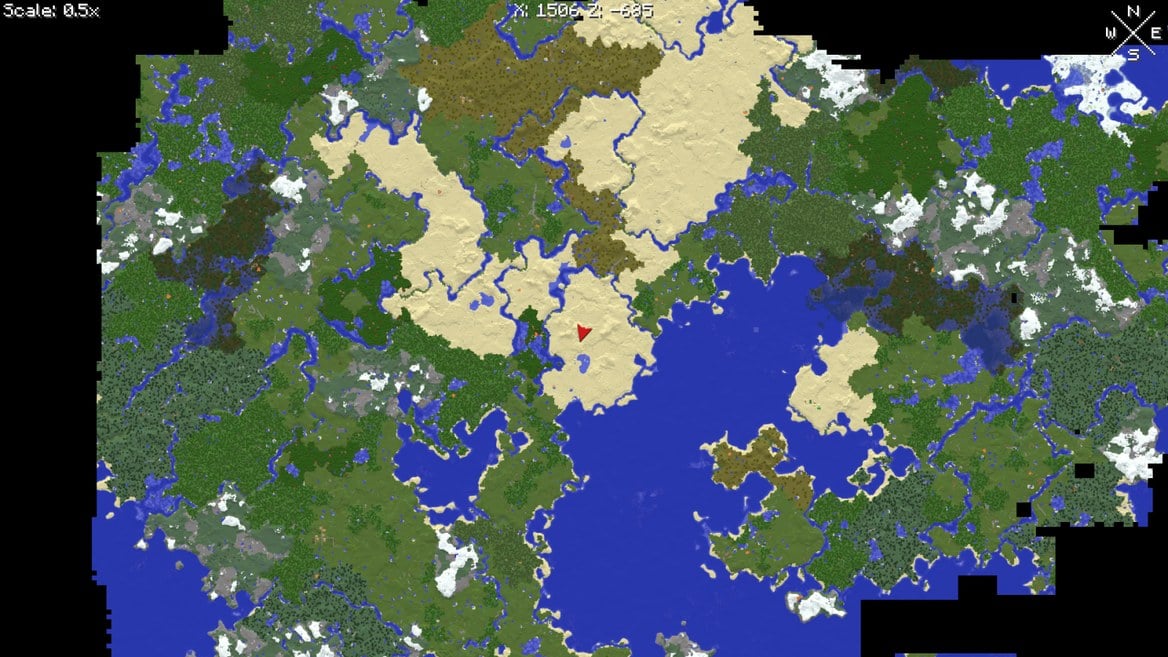
Image by xaero96 via CurseForge
It works on its own, but it’s built to pair with Xaero’s Minimap. The developer keeps the two as separate downloads so the minimap stays light. With both installed, the minimap displays chunks from the world map, and the world map displays your minimap waypoints. You can create, edit, and teleport to waypoints without leaving the map screen. Our Xaero’s Minimap guide covers the corner-of-screen half.
Does Your Server Need Xaero’s World Map?
No. Xaero’s World Map is required on the client and optional on the server. Every player who wants the map installs it on their own computer, and the map works without touching the server. A server install adds extras such as world identification and admin controls.
| Client Only | Client Plus Server | |
|---|---|---|
| Who installs the mod | Each player who wants a map | Each player who wants a map, plus the server |
| Telling worlds apart | You confirm which map to use (Manual mode) | The server picks the map using its level IDs (Server mode) |
| Admin controls | None | Enforce options such as cave mode |
| Players without the mod | Join as normal | Blocked by default; a config option changes this |
| Extra files on the server | None | The mod, plus Fabric API on Fabric servers |
World identification is the feature most servers notice. One server address can host several worlds, such as a lobby and a game world, and the client has no unique ID to tell them apart. By default the mod asks you to confirm a map when you switch. The developer calls Server mode the best option for most cases, and it needs the mod on the server.
The trade-off is the last two rows. A server install lets you set rules for how players use the map. But with default settings, the mod registers status effects that stop players without it from joining. If your community mixes mapped and unmapped players, plan for that before you install.
How to Install It on Your Computer
Download the file that matches your Minecraft version and modloader, then drop it in your mods folder. Fabric and Quilt builds also need Fabric API. Forge and NeoForge builds have no required dependencies.
- Open the Xaero’s World Map page on Modrinth.
- Find the file that matches your Minecraft version and modloader.
- Download the
.jarfile, then drag it into your launcher’s mods folder. - On Fabric or Quilt, download Fabric API for the same version and drag it into the same folder.
- Launch Minecraft, load into a world, and press M to open the map.
If you need help getting your launcher ready, see our guide to installing mods on Forge. The mod version, Minecraft version, and modloader must match on both ends before you move on.
How to Add It to Your Apex Server
You only need this section if you want the server-side extras. The steps below fit Fabric and Forge servers. First, check that the Game File section of your panel shows the same Minecraft version and modloader as your mod file.
Install With Modbox
Modbox is the quickest route, because it’s the built-in mod browser in your panel.
- Log in to your Apex Hosting account and open your Minecraft server panel.
- On the left side, select “
Server Configuration” > “Modbox“. - Search for Xaero’s World Map and open its mod page.
- Select the recommended version for your server, then click “
Install“. - On a Fabric server, install Fabric API the same way.
- Restart the server to apply.
Modbox automatically matches mods to your server’s installed version, but does not install dependencies automatically. That’s why step 5 is a separate job. Our Modbox guide covers the rest of the tool.
Upload With FTP
If you would rather handle the files yourself, download the .jar again, or keep a copy from your client install.
- Head to your Apex server panel and press “
FTP File Access” in the top left. - Log in with your password and open the
modsdirectory. - Near the top left corner, click “
Upload” and drag the JAR files into the respective area. - On a Fabric server, upload Fabric API the same way.
- Wait for the files to reach 100%, then return to the main panel and Restart the server.
Once everything loads, join your server to verify it works. For more on this route, see our guide to adding mods to a Minecraft server.
Using the World Map
Press M to open the map, then use the controls below. The map screen also lists its own controls in a tooltip, so you don’t need to memorize them.
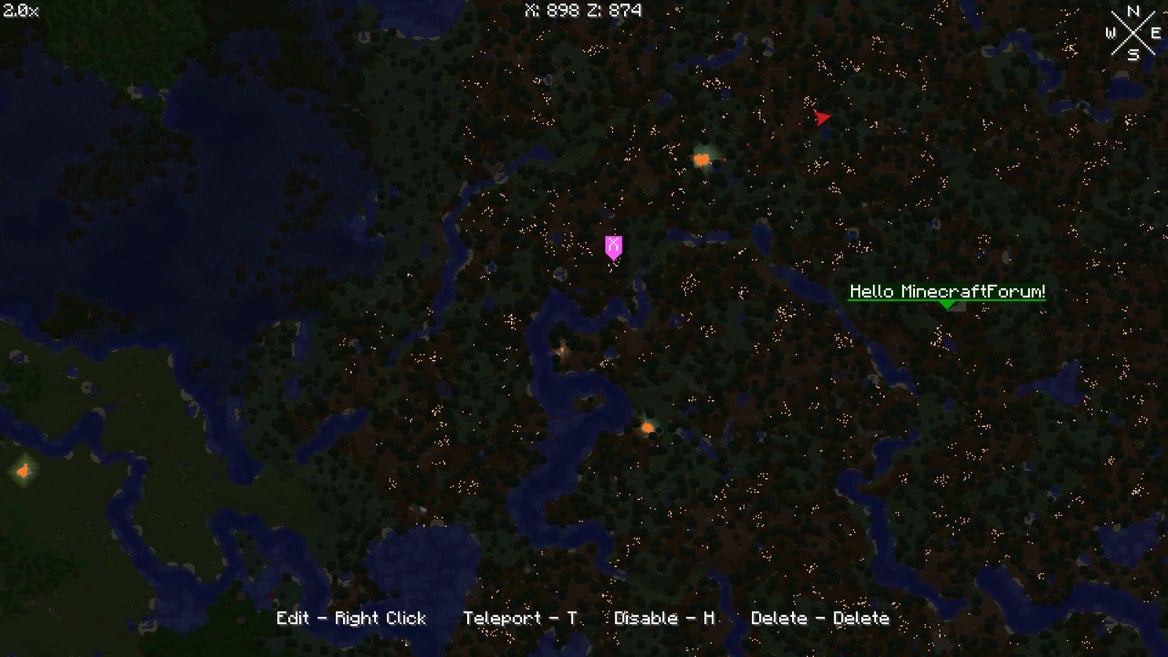
Image by xaero96 via CurseForge
| Action | How It Works |
|---|---|
| Open the map | Press M |
| Move around | Drag with your mouse |
| Zoom | Use the mouse wheel |
| Waypoints | Create, edit, and teleport from the map screen; on version 1.14.0 and later, a waypoint menu opens from the icon in the bottom right corner |
| Cave mode | Click the cave icon in the bottom left of the map screen; the mod also supports cave dimensions such as the Nether |
| Map selection | Open the menu in the bottom left of the map screen if it isn’t already open; it offers Manual, World Spawn, Single, and Server modes |
| Teleport | Right-click a spot on the map; the mod sends /tp @s x y z by default |
| Export | An option exports the map as a PNG image |
Right-click teleporting only works if you have permission to use /tp. On a vanilla server that means OP status. The mod also keeps “footsteps” that trace your most recent path, which helps when you’ve wandered off and need the way back.
Server-Side Controls for Admins
These controls need the mod on the server. The developer notes that the server must run NeoForge, Forge, Fabric, or Quilt. They let you decide how players use the map, which is how you keep a competitive server fair.
| Control | What It Does |
|---|---|
| Open Server Settings key binding | On mod version 1.40.0 or later, set this key in the controls menu and use it in game to open server settings. You can enforce almost any option there, including cave mode. |
| Common config file | On older versions, the server creates a “common” config file, usually in the config folder of the server directory and often at config/xaero/world-map. It lets you disable features. Restart the server after changes. |
| Rank-based rules | The permission xaero.world_map.enforced_server_profile ties the rules to ranks. The mod supports FTB Ranks, Odyssey Roles, LuckPerms, and general permission APIs. |
| Potion effect | The effect xaeroworldmap:no_world_map restricts map use for the players who have it. |
| Item requirement | Adding mapItemId:minecraft:compass to the config file means the map only works while the player has a compass in the hotbar or equipped. |
| Players without the mod | An option in the common config file turns off the status effect registration that blocks them from joining. Do the same for the minimap mod. |
If you can’t install the mod on your server, the developer documents a system-message method for turning off cave mode on joining players. A separate third-party datapack, Xaero’s Map Server Utils, wraps that method in commands. It comes from a different author than the mod, so use it at your own risk.
World Map vs Minimap
Pick the world map when you want the big picture: explored terrain, waypoints, and a place to plan your next trip. Pick the minimap when you want a small view in the corner of your screen while you play. Most players run both. Each one only needs the other for the shared features, so you can start with either.
If you’d rather use a different mapping mod, our JourneyMap guide is the alternative to try.
Xaero’s World Map FAQ
Only the players who want the map. The mod is required on each player’s client, but it’s optional on the server.
Not by default. A server install registers status effects that stop players without the mod from joining. The developer says the common config file has an option to turn this off, and changes need a server restart. Do the same for the minimap mod.
The mod sends a chat command, /tp @s x y z by default, so you need permission to use it. Vanilla /tp requires OP status. You can change the command with the Map Teleport Command setting in the world map settings. Non-vanilla teleport commands often don’t support selectors such as @s, so you might need to remove it from the configured command.