Hosting your own Minecraft server and watching the world grow is an amazing feeling, but what’s the best way to view the map? Our suggestion is Squaremap, a Spigot/Paper plugin that allows you to have a real-time live viewing of the world and players accessible online. With a quick setup, you can begin checking out the world from browsers on any device. In this Apex Hosting guide, we’ll show you how to install and use Squaremap in Minecraft 👏
What is Squaremap?
Squaremap is a fast, lightweight mapping tool designed to display Minecraft worlds inside any web browser. Instead of rendering complex 3D models or isometric perspectives, it uses a top-down 2D format resembling the in-game map style. This approach keeps server hardware demands and storage usage low while still offering real-time player locations, coordinate tracking, and world exploration.
Comparison Table
View the differences between Squaremap, Dynmap, and BlueMap.
| Feature / Metric | Squaremap | Dynmap | BlueMap |
|---|---|---|---|
| Perspective | Top-down 2D | 2D Flat & 2.5D Isometric | Full 3D Interactive (WebGL) |
| Resource Usage | Low (minimal CPU & RAM overhead) | Moderate to High | Moderate to High |
| Storage Footprint | Small (compact tile set) | High (multiple perspectives/zooms) | Very High (custom 3D geometry) |
| Render Speed | Fast multi-threaded processing | Slower generation cycles | Moderate |
| Client Accessibility | Runs smoothly on any device | Good across most browsers | Requires dedicated GPU/WebGL support |
| Core Strengths | Performance-focused SMPs | Traditional servers wanting web chat | Visual showcases & creative builds |
How to Install Squaremap
- Navigate to Squaremap on Modrinth and download the plugin.
- Download it for Paper and your game version.
- Head towards your Apex server panel and stop the server.
- Click
File Management > FTP File Accesson the left.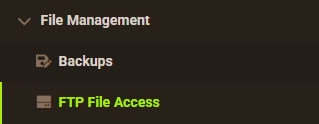
- Open up the
pluginsfolder. Drag + drop the plugin file in this directory.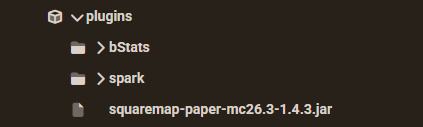
- Go back to the main panel and startup the server.
Squaremap Setup
- Navigate to the FTP File Access area from File Management.
- Go to
plugins>squaremap, then double-click theconfig.ymlfile.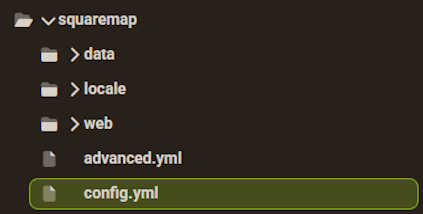
- Change the
portsetting under theinternal-webserversection.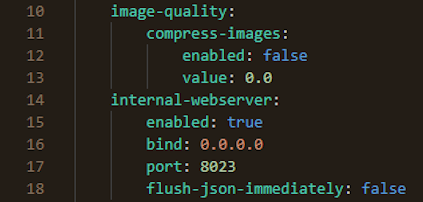
- Edit the value to something similar, e.g.
8023
- Edit the value to something similar, e.g.
- (Optional): Adjust other options in the same configuration.
- Save the changes, then restart the server from the panel.
Live Map for Minecraft
Run the /map fullrender command in the console or in-game with OP permissions. This will begin rendering the world in your live viewer. Wait for this to be completely finished.
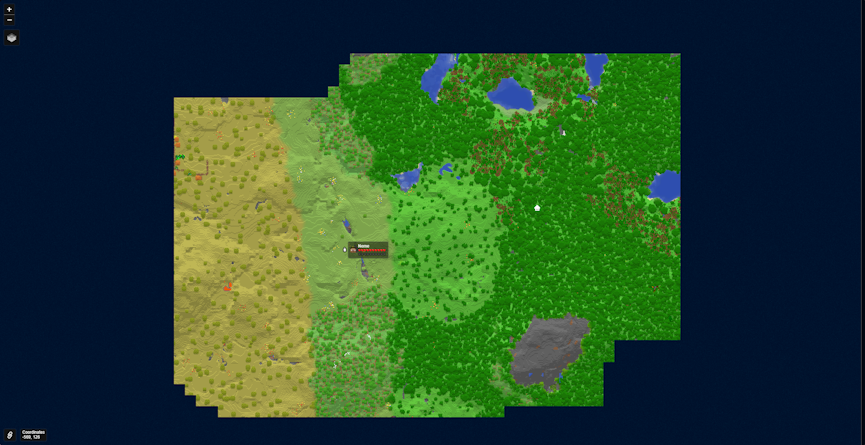
View the live map for your Minecraft server by using the IP Address and Squaremap Port you configured. For example, entering “172.240.9.67:8023” in your browser will redirect you to the map. Connected players moving around will be displayed, alongside any buildings or structures. If you want any addons for Squaremap, click here. They support PlotSquared, Towny, and other features like mobs, banners, etc..
Frequently Asked Questions
Why does the web map fail to load?
Make sure that you’ve edited the port in the config.yml file, under the internal-webserver section. Change this to something like “8023” or another set of values, then save changes. Do not change the bind setting. Restart the server, then visit IP:PORT in your browser (e.g. http://172.240.9.67:8023).
Why is the map blank or showing black tiles?
Squaremap only renders known chunks. In a brand new world, players must explore chunks for them to be loaded in the live viewer. For existing worlds, you must use the /map fullrender command for the chunks to load in the viewer.
Can I hide specific players from the map?
Yes. Use the /map hide command to target any player, this will hide them from the live viewer. If you want to unhide them, simply use /map show for the same player.
Does Squaremap work with Bedrock players?
Yes. The map runs in standard web browsers on any device, making it viewable by Bedrock and GeyserMC players alike.