


One of the best benefits of hosting your own Palworld server is crossplay support. Whether you’re playing on Xbox or PlayStation, it’s entirely possible to join your server. In just a few minutes, you and others alike will be adventuring with Pals. Newcomers to the scene might be unfamiliar with the process, so we’ve created this Apex Hosting guide to show you how to join a Palworld server on consoles.
Palworld Crossplay Setup
Before proceeding, double-check that your server has crossplay enabled.
- Head towards your Apex panel for the Palworld server.
- Navigate to
Server Configuration>Customizationson the left.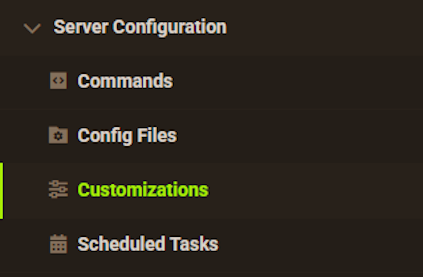
- Locate
Cross Playand ensure it’s toggled on.
- If you did enable it, restart the server so it takes effect.
⚠️ We strongly recommend also changing the Public Server Name in the same area. You will need to use this when you connect on your console.
How to Join on Xbox / PlayStation
The steps are identical for both platforms, so when you’re ready follow the instructions.
- Launch Palworld on your console.
- Select
Join Multiplayer Gamefrom the menu. - Navigate to the
Community Serverstab. - Click the
Search Barat the top. - Enter the exact name for your server.
- Select it from the results, then click
Connect. - If prompted, enter your
Server Passwordto continue.
Common Issues
Here are some common issues with solutions that you may encounter.
Connection Failed / Version Mismatch
If there’s been a recent update, make sure to restart the server. This will automatically download the latest version of Palworld, updating your server. Double-check that you’ve also updated the game on your console. After that, try joining again.
Server Not Appearing in Search
Refresh the Community Servers tab a few times and search for your server. If it still hasn’t shown, double-check you’re entering the correct name. Give the server a restart and reboot your game, then try again.
Missing IP Address Connect Bar
Due to platform security guidelines, consoles do not have a method to connect via IP Address:Port. You must use the name of your server in the Community Servers tab to join.
“No Password” Error Prompt
If your server isn’t prompting for a password and throws an error, click on a random server that has a password lock icon. Type in random text when prompted and try to connect (it will fail). Afterwards, you can try your own Palworld server and it should prompt you to enter a password now.






















