When playing vanilla Minecraft, spending plenty of time within your world is a core part of the gameplay experience. After playing through your world for a prolonged amount of time, you may wish to expand your efforts without directly giving up or modifying your existing world. Introducing Multiverse-Core, a plugin that directly aims to fix this problem by allowing multiple worlds to be created and accessed on a single server. Whether you have creative and survival worlds, minigames, or more, Multiverse can provide it all. Installing and starting with Multiverse-Core can be confusing for unfamiliar players, so we have created this Apex Hosting guide to ease you into the setup process.
Summary
Multiverse-Core is a massively popular plugin with over 6.9 million downloads on the Bukkit plugin page. Originally created around 2011, the plugin spans from earlier than 1.8 up to the current modern versions. Multiverse-Core allows you to have multiple worlds accessible on one server, allowing for different experiences across each of them in minigames or gamemodes.
Modbox Installation
IMPORTANT: Make sure to have Spigot or Paper selected in the Game File option on your server panel so plugins can work properly.
- Head towards your Apex server panel for the server.
- Navigate to
Server Configuration > Modboxon the left.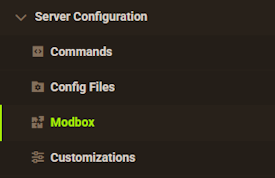
- Choose the version and search for the plugin you want, then select it.
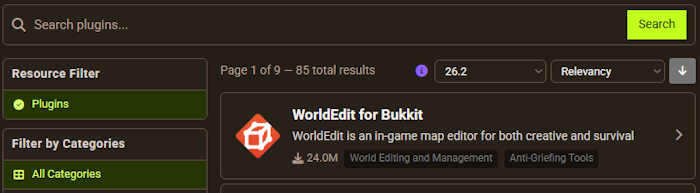
- Click
Installon the right and wait for it to be installed. - Restart the server to load the plugin. Repeat this process for any other plugins.
Manual Installation
Download Multiverse Core on Bukkit or Spigot and follow these steps:
- Download the plugin file from the link above.
- Head towards your Apex server panel for the server.
- Locate the Game File option, then select Spigot or Paper if you haven’t already.
- Navigate to
File Management > FTP File Accessand login. - Drag + drop the .jar file in the
pluginsdirectory. Alternative: Click theUploadbutton and select the file. - Wait for this to finish, then return to the main panel.
- Restart the server and the plugin should load properly once you join.
How to Get Started
Generating a New World
With Multiverse-Core, generating an extra Minecraft world is as easy as entering a command into the console.
These commands use the /mv create [WorldName] [Environment] format, where the environment is normal, nether or the_end. Examples include:
- /mv create WorldName normal – Generate a random overworld.
- /mv create WorldName normal -t FLAT – Generate a superflat overworld.
- /mv create WorldName nether – Generate a Nether world.
- /mv create WorldName the_end – Generate an End world
Importing an Existing World
Alternatively, an existing world can be uploaded and used as well. This can be beneficial for uploading your favorite worlds or including possible minigames.
Loading the World
For detailed instructions on how to upload a world, visit our guide here.
- Using a program such as 7-ZIP, zip the world you wish to use.

- Use FTP to upload your world to the panel.
- Once uploaded, navigate to the
FTP File Accessto unzip your world.
- In-game, use the following command:
/mv import [YourWorldName] [Environment]
Both the name and environment (normal, nether or the_end) will need to match the one that is being uploaded. Examples may include:
- /mv import SurvivalWorld normal
- /mv import MyNether nether
- /mv import world_the_end the_end
Paper 26.1 and later: Paper now stores every world inside a dimensions folder in your main world folder. On these versions, the Multiverse-Core documentation says to import a world with its namespaced key (for example minecraft:the_nether) instead of its folder name. The steps above work on Spigot and on Paper before 26.1. For newer Paper versions, follow the Multiverse-Core basic usage guide.
Notable Commands
/mv create [WorldName] [Environment] – Create a specific world type on the server.
/mv import [WorldName] [Environment] – Import an existing world for use.
/mv setspawn – Set the respawn point for a world.
/mv tp [Player] [World] – Teleport a player into a different world.
/mv unload [World] – Unloads a world from the server.
/mv load [World] – Enables an unloaded world.
/mv gamerule set [Rule] [Value] [WorldName] – Sets a gamerule for a specific world.
Consider visiting the Multiverse-Core Command page for more information on commands and their usage.
Conclusion
With that, you should now know how to install and operate the basics of the Multiverse-Core plugin. With the ability to add and customize each world directly, there is no limit to what can be achieved. Whether you add a spawn hub world, have a creative world, minigames, and more, Multiverse-Core is a must-have for server hosts and players alike. Gather your worlds and prepare to embark across a multi-world journey.
Frequently Asked Questions
Why Are My Multiverse Commands Not Working?
Oftentimes, this occurs because the plugin did not load up properly. First, visit the main panel page and ensure your server is running a version like Paper or Spigot. Afterwards, visit the FTP File Access and make sure the file was uploaded directly into the plugins folder. Once this has been confirmed, restart the server once again.
Why Don’t I Have Permission To Use Commands?
When this occurs, it often means that your character has not been opped through the server console. To fix this, visit the console tab on your server, then enter op YourUsername to give your player command access. If you have a permissions plugin such as Luckperms, you may need to configure it manually.
Does Multiverse-Core Work With Bukkit, Spigot, And Paper?
Yes. Multiverse-Core is built on the Bukkit API and runs on Bukkit, Spigot, and Paper servers, which is why the Modbox and manual installation steps above both call for Spigot or Paper as the selected server version. Folia support is not yet available, so a Folia server is not a supported option for this plugin.
Can I Use Different Game Modes Or Difficulty Settings Per World?
Yes. Each world created or imported with Multiverse-Core keeps its own settings, including game mode and difficulty. While standing in the world you want to change, use /mv modify set gamemode [survival/creative/adventure] to set its game mode, and /mv modify set difficulty [peaceful/easy/normal/hard] to set its difficulty. This is what makes it possible to run a survival overworld and a creative build world on the same server without one setting affecting the other.
Helpful Links
Multiverse-Core Bukkit Page
Multiverse-Core Wiki
Multiverse-Core Commands page