One of the biggest headaches for any server owner is lag. It can come from the plugins and mods you install, the redstone contraptions your players build, or the hardware underneath the game itself. If you host with Apex, hardware is one variable you can rule out right away.
This guide covers Minecraft server optimization from every angle that actually matters: telling the different types of lag apart, fixing the config files that quietly cause most of it, choosing the right plugins, and tuning your server’s JVM startup flags. There are a lot of moving parts here, and you don’t need to touch all of them at once. Start with whichever section matches what you’re seeing on your server, then work through the rest as time allows.
Types of Lag
Server Lag (TPS)
Overall server performance is represented by its TPS (Ticks Per Second). A server’s TPS is like a heartbeat. Your server beats at a fixed rate of 20 ticks per second, so one tick every 0.05 seconds.
On each tick, various aspects of the server advance a little bit. Mobs move, grass grows, animals spawn, and almost everything that happens on the server relies on ticks. When at peak performance, 20 TPS, you’ll experience normal gameplay without any server-side lag. But if your server’s TPS starts to drop, you’ll begin to notice lag while you play.
What occurs on the server, as well as the hardware it is running on, plays a role in determining the server’s TPS. Mismanaging the server can be just as detrimental as inadequate hardware.
When adding mods or plugins, think about the long-term effects of your choices. Many new server owners assume that player count alone determines performance. Players can have an effect, but it’s usually small compared to the impact of redstone machines, mob farms, and mods or plugins. Most TPS drops trace back to what’s actively running in your world at a given moment, not who’s logged in.
Client Lag (FPS)

Having low FPS will generally come with your game behaving slowly. If your frame rate is low enough, playing the game may feel like watching a slideshow. Having a low frame rate on your server does not mean that the server is lagging but that your computer is failing to keep up with the game. If you do have a consistent low frame rate on your PC, you will most likely need to adjust your game settings, update your drivers, or upgrade the graphics card, RAM, or CPU.
It’s worth knowing the difference between server lag and low FPS. Sometimes low FPS and server lag show up together, and it’s easy to blame the server when the real culprit is the device you’re playing on.
There are a lot of ways to fix low FPS without upgrading your hardware. In Minecraft, you can go to the video settings and reduce all of the functions. For example, you can turn clouds off so that your computer doesn’t have to render them. It’s also a good idea to close other background processes you don’t need. This frees up resources your computer can dedicate to the game, and closing anything open on your taskbar is the quickest way to do it.
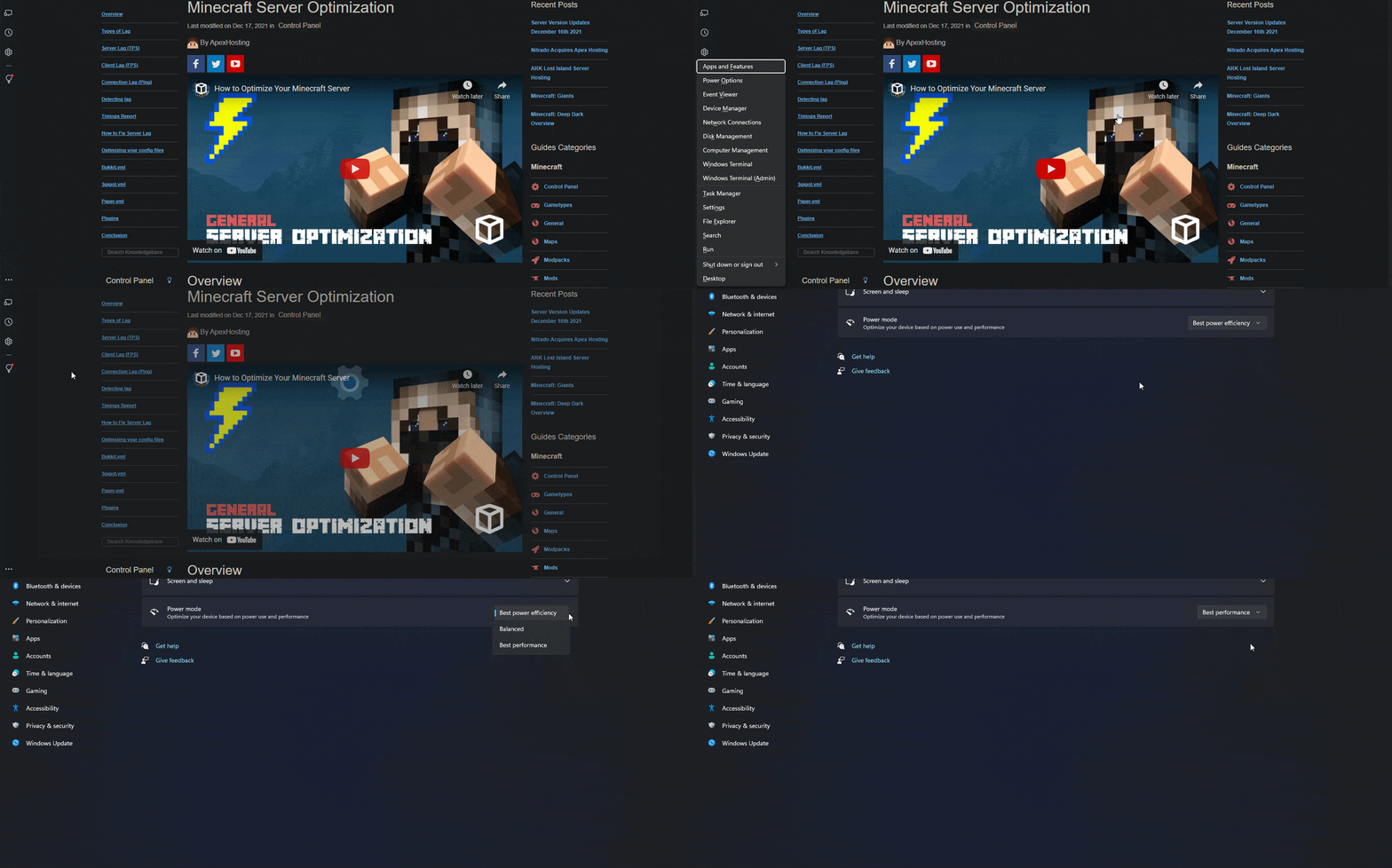
Another option is to switch your PC’s power mode to its best-performance setting. On Windows 11, you can do this by pressing the Windows Key + X to open the Quick Link menu. Then choose “Power Options” to open your power settings. Change the Power mode to “Best performance”.
Connection Lag (Ping)
Connection lag correlates with your ping. Ping refers to the network latency between your game and your server. This reflects how long in milliseconds data takes to process and travel. If you have high ping, your connection to the server may time out. High ping is not something that’s caused by lag, but it can cause lag, and it may even disconnect you from the server because of the instability.
A low ping is best, since lower latency provides smoother gameplay. Typically, the further away a server is from your physical location, the greater your ping will be. The best way to minimize this is to move your server to the location closest to you and your players. Internet connection speed, your ISP’s quality, issues with the Minecraft network, and firewall configuration can all affect ping too.

Latency can change depending on network conditions and the status of the server you’re connecting to. You can test how bad latency will be on a server by “pinging” it, which measures how long it takes for the server to receive a message and respond. We recommend using your command prompt to test this. Open a terminal or command prompt (Windows+X works here too), then type “ping ServerIP”. For example: “ping play.apexmc.co”. The process may take a second to run, but you’ll see the average ping displayed once it finishes.
Creating a Spark Profiler Report
A profiler report shows you how long your server spends on each task, and where lag issues are dragging your TPS down. Paper replaced its old Timings profiler with Spark, which comes bundled with Paper 1.21 and newer. To run one, join your server and run the command /spark profiler start --timeout 600. This profiles your server for 600 seconds (10 minutes), so run it while the lag is happening. When the time is up, Spark gives you a link to the report, so go ahead and open it in your browser. To end a profile early, run /spark profiler stop.
Reading a Spark Profiler Report
When the report opens, the viewer lists the threads that were profiled. The “Server thread” is usually the one you care about most on a Minecraft server. Click a thread to expand it, then click any entry to expand the entries beneath it. Each entry shows its name and the percentage of the thread’s time spent there. Hover over an entry to see the time in milliseconds.
To find the cause of the lag, follow the largest percentages down through the layers. The report has a few ways to look at the same data. “All View” is the default and shows the full profile as an expandable tree. “Flat View” lists the 250 slowest method calls at the top level. “Sources View” shows a separate tree for each plugin or mod, which makes it easier to see which plugin is responsible. The flame graph shows the same data as boxes, where the width of each box matches the share of time spent on it.
Once you know the cause, you can go back to your server and remove it, or adjust your settings to reduce its impact.
How to Fix a Laggy Minecraft Server
Knowing how to optimize your server is the difference between chasing lag every week and preventing it before it starts. There are plenty of tools available to get the best possible performance out of your server, and even push it beyond its normal limits.
Removing Tick/Lag Machines
Redstone is a wonderful mechanic for building almost any kind of machine, but having too many machines running at once will decrease your TPS and cause lag for every player. The fix is to limit the number of machines running and consider an entity or mob-limiting plugin (see the Plugins section below for current recommendations). Otherwise, try not to run too many automated farms, mob grinders, or complex redstone mechanics at the same time. Whenever possible, include a way to switch off your machines and farms so they aren’t running constantly and eating up server resources.
Pre-generating Your World
A vital step in lag removal is pregenerating the world, and it should be done before anything else. The best way to do this is with the Chunky plugin. Install the plugin, then run /chunky radius 5000 followed by /chunky start.
This pre-generates a 5,000-block radius. The server will lag heavily while the process runs, but once it’s done, performance improves dramatically. You can increase the radius as much as you like, though we recommend keeping it under 20,000 blocks.
One useful step for any Minecraft server is lowering the view distance in server.properties. A value between 6 and 8 usually helps performance without hurting gameplay.
If you’re running Spigot or Vanilla, we strongly recommend switching to Paper. Paper has a large number of optimization and anti-cheat features that give you noticeably better performance out of the box.
Optimizing Your Config Files
Some of the main files you’ll want to modify to really optimize your server are bukkit.yml, paper-world-defaults.yml, and spigot.yml. Below are the settings we recommend changing to get the best performance with the least effect on gameplay.
To use these settings, stop your server from your control panel, then reference the blocks below for the optimized settings for each file. These files can be found in the FTP File Access tab of your control panel. The paper files are located in the “config” directory. Double-click a file to open it in the editor. Once you’re done editing, press Ctrl+S (Cmd+S on a Mac) or click the save button in the unsaved-changes notice near the bottom, then restart the server for the changes to take effect. Each block below shows the keys this guide sets, with the parent keys they sit under. Edit the matching keys in your existing file instead of replacing the whole file. bukkit.yml and spigot.yml are in the main server folder, and paper-world-defaults.yml is in the “config” directory.
bukkit.yml
spawn-limits:
  monsters: 50
  animals: 8
  water-animals: 5
  water-ambient: 10
  water-underground-creature: 5
  ambient: 1
ticks-per:
  animal-spawns: 400
  monster-spawns: 5
  water-spawns: 11
  water-ambient-spawns: 21
  water-underground-creature-spawns: 11
  ambient-spawns: 31
  autosave: 6000
spigot.yml
settings:
  save-user-cache-on-stop-only: true
world-settings:
  default:
    mob-spawn-range: 6
    entity-activation-range:
      animals: 16
      monsters: 24
      raiders: 48
      misc: 8
      water: 16
      villagers: 24
      flying-monsters: 24
      tick-inactive-villagers: false
    merge-radius:
      exp: 4.0
      item: 6.0
    nerf-spawner-mobs: true
    arrow-despawn-rate: 300
    trident-despawn-rate: 300
paper-world-defaults.yml
chunks:
  max-auto-save-chunks-per-tick: 6
  prevent-moving-into-unloaded-chunks: true
environment:
  optimize-explosions: true
collisions:
  max-entity-collisions: 2
tick-rates:
  container-update: 3
  grass-spread: 4
  mob-spawner: 3
hopper:
  cooldown-when-full: true
  disable-move-event: true
misc:
  redstone-implementation: EIGENCRAFT
entities:
  behavior:
    disable-chest-cat-detection: true
  armor-stands:
    do-collision-entity-lookups: false
    tick: false
  spawning:
    despawn-ranges:
      monster:
        soft: 28
        hard: 96
    non-player-arrow-despawn-rate: default
    creative-arrow-despawn-rate: default
    per-player-mob-spawns: true
    alt-item-despawn-rate:
      enabled: true
      items:
        cobblestone: 300
        netherrack: 300
        sand: 300
        dirt: 300
        gravel: 300
anticheat:
  anti-xray:
    enabled: false
Note: current Paper versions nest despawn-ranges per entity category rather than accepting one flat soft/hard pair for the whole server. The block above applies this guide’s original soft (28) and hard (96) values to the monster category as a working example. If you want to tune despawn distances for other categories, such as ambient, creature, water_creature, or axolotls, repeat the same two-line soft/hard pattern under each category name.
Two of these settings have side effects that Paper documents. A container-update value above 1 can cause item desync or ghosting in inventories, and disable-move-event: true breaks protection plugins and any other plugin that relies on hopper move events. If either is a problem on your server, leave that setting at its default (1 for container-update, false for disable-move-event).
JVM Startup Arguments (Aikar’s Flags)
Your config files control how the game world behaves, but the Java Virtual Machine running underneath it has its own performance settings, and they matter just as much. Aikar’s Flags are a set of JVM startup arguments documented on Paper’s own site to tune Java’s G1 garbage collector specifically for how Minecraft servers use memory.
Java periodically pauses your entire server to clean up unused memory, a process called garbage collection. With default JVM settings, these pauses can bunch up and hit right as your server is under load, which shows up in-game as a sudden TPS drop or a “Can’t keep up!” warning even though nothing in your world changed. Aikar’s Flags tune the G1 collector to clean up in smaller incremental steps and to aim for short pauses, which helps reduce those spikes.
The current flag set, as documented on Paper’s own site, looks like this:
java -Xms{RAM}M -Xmx{RAM}M -XX:+UseG1GC -XX:+ParallelRefProcEnabled -XX:MaxGCPauseMillis=200 -XX:+UnlockExperimentalVMOptions -XX:+DisableExplicitGC -XX:+AlwaysPreTouch -XX:G1NewSizePercent=30 -XX:G1MaxNewSizePercent=40 -XX:G1HeapRegionSize=8M -XX:G1ReservePercent=20 -XX:G1HeapWastePercent=5 -XX:G1MixedGCCountTarget=4 -XX:InitiatingHeapOccupancyPercent=15 -XX:G1MixedGCLiveThresholdPercent=90 -XX:G1RSetUpdatingPauseTimePercent=5 -XX:SurvivorRatio=32 -XX:+PerfDisableSharedMem -XX:MaxTenuringThreshold=1 -Dusing.aikars.flags=https://mcflags.emc.gs -Daikars.new.flags=true -jar paper.jar --noguiIf you start the server yourself, replace {RAM} with the amount of memory, in megabytes, that you want to give your server. On Apex, you don’t need to build a full launch command yourself. Head towards your Apex server panel, then go to “Server Configuration” and open “Customizations“, where you can pick your Java version and add JVM arguments. Paste only the -XX and -D flags into the “Additional JVM Arguments” box, without java, -Xms, -Xmx, or -jar paper.jar --nogui, then restart the server to apply.
One caveat worth double-checking before you copy these in: Paper recommends giving a server at least 6-10GB of RAM, no matter how few players it has, because G1, the garbage collector these flags tune, works better with more memory. More RAM is not automatically better, either. Paper notes that more memory does not mean better performance above a certain point, so match your allocation to what your server actually uses, which the /spark health report shows.
Plugins
Changing the base server files is not the only way to reduce or get rid of lag. Plenty of plugins exist for the sole purpose of reducing lag, and installing the right one or two can make a real difference. Here is the list we recommend most often to our users.
- ClearLag++ (actively maintained, updated May 2026): handles entity limiting, mob spawn limiting, and automatic item cleanup with live TPS and MSPT stats.
- Villager Optimiser (1.14.2-1.16.5): throttles the expensive pathfinding villagers run in 1.14 and 1.16. It has not been updated past 1.16.5, so if you’re on a newer version and still fighting villager lag, look at BubbleVillagers, a modern, actively maintained rework of the same idea that supports 1.16 through 26.1.x and Folia.
- Entity Tracker Fixer (1.13-1.21): fixes inefficient entity tracking that can quietly eat server ticks.
- Farm Limiter (Premium, 1.8-1.21): limits mob farms and grinders before they spiral into a TPS problem.
- Mob Farm Manager (Premium, 1.7+): gives you finer control over mob farm spawn rates and caps.
- Spark (1.8+): a lightweight profiler that pinpoints exactly what’s consuming your server’s tick time. If you’re running Paper 1.21 or newer, you likely already have it. Paper bundles Spark as its default profiler starting with 1.21, replacing the older Timings v2 system, so a separate install may not be necessary. Use the
/spark profilercommands from the profiler section above. - StackMob (1.16+): reduces mob-related lag by stacking identical mobs into a single entity with a counter.
- Armor Stand-Limiter (1.8+): caps armor stand counts before they become an entity-count problem.
These plugins won’t completely eliminate lag on your server, but they go a long way toward helping. If you don’t know how to install plugins on your Minecraft server, we have an easy guide for you to follow.
Bedrock Optimization
Improving the performance of your Bedrock server is limited due to its design, but there are a few settings you can apply to boost that.
- Head towards your Apex server panel, then click “
FTP File Access” near the top left and log in with your panel password. - Double-click the
server.propertiesfile to open it in the editor, then copy and paste these options into the file on new lines:view-distance=10 tick-distance=4 max-threads=0Note: If you already see one or more of these settings in the file, then change the values accordingly.
- Afterward, press Ctrl+S (Cmd+S on a Mac) to save the file, then restart the server from the main panel.
The view distance dictates how many chunks the player can see, thereby saving server resources. The tick distance controls how many chunks are ticked away from the player, also helping with resource usage. It accepts values from 4 to 12, so 4 is the lowest setting. The max threads setting determines the maximum number of threads the server uses, which if set to 0 will attempt to use all. These changes should optimize your Bedrock server and output better performance. However, if you still encounter problems then limiting the activity in your world is advised. Alternatively, you can run Geyser on a Paper server. Geyser lets Bedrock players join a Java server, so you can use Paper’s optimization settings and plugins.
Frequently Asked Questions
What Is a Good TPS for a Minecraft Server?
20 TPS is the maximum and the target: it means the server is completing every tick in its full 50-millisecond budget with room to spare. Staying at 18 or above is enough that most players won’t notice anything. Once TPS drops toward 15, the slowdown becomes obvious, and below 10 the server is effectively unplayable, with rubber-banding and skipped actions as the game tries to catch itself up.
Why Is My Minecraft Server Lagging With No Players Online?
The world keeps simulating even when nobody’s around to see it, as long as the relevant chunks stay loaded. Chunk loaders, flying machines, and automated farms built around observer clocks will keep running 24/7 if the chunks they occupy don’t unload, and hoppers are especially costly since each one checks for items several times per second by default. Java 1.21.9 removed spawn chunks, so a base at spawn no longer stays loaded by default, but any chunk loader or force-loaded area in the world can still tick away with nobody logged in.
What’s the Difference Between TPS Lag, FPS Lag, and Ping?
TPS lag is server-side: the world itself is struggling to keep up, and every player feels it. FPS lag is client-side: your own computer can’t render the game smoothly, and it affects only you. Ping is connection lag, the delay between your actions and the server receiving them. All three feel similar in the moment, but they have different causes and different fixes, which is why the Spark profiler sections above focus specifically on isolating server-side TPS problems.
Do Aikar’s Flags Still Work on Modern Paper Versions?
Yes. Paper’s own documentation still lists them as its recommended JVM startup flags. They are Java options, not Paper settings, so you can also use them with Spigot and other Java-based server software. The main caveat is memory: Paper recommends at least 6-10GB of RAM for a server, no matter how few players it has.
Does Giving My Server More RAM Automatically Fix Lag?
Not on its own. Paper notes that more memory does not mean better performance above a certain point, and that buying far more RAM than your server needs wastes money. RAM helps when your server is genuinely running out of it, which the /spark health report will show. Beyond that, more allocation without more actual demand generally doesn’t move your TPS.
How Do I Actually Find What’s Causing My Server’s Lag?
Run a Spark profiler report while the lag is happening. It breaks down how much tick time each plugin and each part of the game’s tick is using, which turns “the server feels laggy” into a specific list of what to fix first. Guessing at the cause and disabling things one at a time works eventually, but it takes far longer than reading the actual report.
Does Lowering View Distance Really Help With Lag?
Yes, but the two distance settings do different jobs. View distance (view-distance) sets how many chunks the server sends to each player, so cutting it from the default of 10 down to 6-8 reduces the number of chunks your server has to send. Simulation distance (simulation-distance, also 10 by default) sets how many chunks around each player have their entities updated, so lowering it is what reduces the number of entities your server has to tick. Both settings are in server.properties and cost nothing to try.
Conclusion
One of the most important aspects of owning a server is making sure it is well optimized and running smoothly. When players join a server, they don’t expect to run into lag. You can’t always control the lag they experience client-side, but there is plenty you can do to prevent server-sided lag.
If you’re running a Vanilla Minecraft server, you might assume it won’t experience lag since it’s the base version of the game. Unfortunately, the base game doesn’t offer many options for optimization and can get laggy fast. Each major Minecraft update tends to add more entities, blocks, and simulation overhead on top of what came before, which only raises the bar further. Switching to Paper or one of its forks like Purpur will drastically improve your performance, and following this guide after switching to Paper will keep your players happy and your server running the way it should.