


The easiest way to secure your Hytale server is by adding a password. This prevents anyone without the specific code from joining your world.
- Head to your Apex Server Panel and select Config Files from the left menu.
- On this page, choose Hytale Server Settings.
- In the Server Password field, enter your desired password and click Save.
- Restart the server to apply your new password.


Setting up a Hytale Server Whitelist
Setting up a whitelist for Hytale is straightforward, and you can manage your whitelist with just two main commands.
How to Enable the Whitelist
- In your Apex Hosting panel, select Console from the left menu.
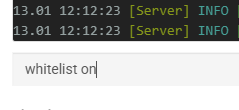
- While the server is running, enter
whitelist onin the command prompt and click Send. - If successful, you will see the “Whitelist enabled!” confirmation message.
Adding Players to the Whitelist
- In your Apex Hosting panel, select Console from the left menu.
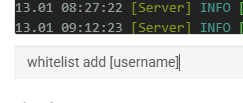
- While the server is running, enter
whitelist add [username]in the command prompt and click Send. Replace [username] with the Hytale account you want to be whitelisted. - If successful, you will see the “Added [username] to the whitelist!” confirmation message.
Whitelist Permissions
Since Update 6 for Hytale, the whitelist.json file was removed. They’ve switched to using permissions to manage who can join the server or not. Fortunately, you can still remove them from the whitelist via commands – but you need to restart the server so the permission can be removed. Here’s how you can manage them:
- Stop the server from your panel.
- Navigate to
Server Configuration > Config Fileson the left. - Select Hytale Server Permissions at the top.
- Add or remove
hytale.server.joinfrom the account. - Save changes and start up the server.
For those who want to remove someone from the whitelist. Simply use the whitelist remove [username] command in the console or in-game with OP permissions. This will remove “hytale.server.join” from their account, only after a server restart.
Hytale Whitelist Commands
| Command | Description |
|---|---|
whitelist [on / off] |
Enable or disable the whitelist for the server. |
whitelist [add / remove] |
Add or remove players from the whitelist. |
whitelist list |
Displays all whitelisted players. |
whitelist status |
Shows if the whitelist is enabled or disabled. |
whitelist clear |
Remove all players from the whitelist. |
Private Hytale Adventures
Securing your server gives you peace of mind, allowing you to focus on building, exploring, and adventuring with your friends. Whether you use a simple password or a strict whitelist, you now have full control over who enters your world. Get out there and enjoy your private Hytale journey!






















