

Do you hate losing all your hard-earned gear when you die? Or maybe you want to ramp up the difficulty for a true hardcore experience? Hytale allows you to customize exactly what happens when you respawn. Whether you want to keep your inventory or drop everything, the choice is yours. In this Apex Hosting guide, we will show you how to configure the death penalty settings on your server.
Available Death Penalty Settings
Before jumping into the config files, you need to understand how the settings work. The config.json allows you to change the loss mode and even set specific percentages for item loss. These settings apply per world, so you can have different death rules on different worlds within the same server.
- ItemsLossMode: Controls the overall behavior. Options are None (Keep Inventory, ideal for casual or creative servers), All (Drop Everything, best for hardcore or PvP-focused servers), or Configured (uses percentage settings for a middle ground).
- ItemsAmountLossPercentage: If mode is “Configured,” this determines what percentage of your item stack you lose on death (e.g., 50.0 is half). Only applies when mode is set to Configured.
- ItemsDurabilityLossPercentage: Determines how much durability your items lose upon death. Set to 0.0 if you do not want item wear on respawn. Only applies when mode is set to Configured.
For a combat-focused server, consider pairing these settings with enabling PVP to create a fully competitive experience. You may also want to review changing the game mode to ensure your world type aligns with your chosen death penalty.
How to Change the Death Penalty
Changing this setting requires a quick edit to your world’s configuration file. Make sure you have admin access to the server panel before starting.
Accessing the Config File
- Head to your Apex Server Panel and Stop the server.
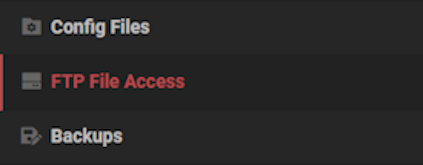
- Click FTP File Access on the left-hand side and log in.
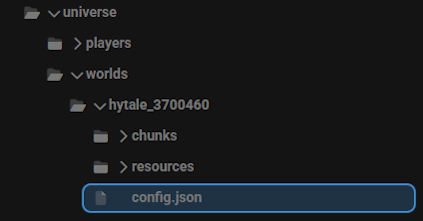
- Navigate through the folders: universe > worlds > [YourWorldName] and double-click the config.json file to Edit.
Editing the Settings
- Inside the file, use the search function (Ctrl+F) or find this exact line:
"GameplayConfig": "Default", - Place your cursor at the end of that line and press Enter to create a new empty line.
- Paste the following code block into that empty space:
"Death": {
   "RespawnController": {
     "Type": "HomeOrSpawnPoint"
   },
   "ItemsLossMode": "Configured",
   "ItemsAmountLossPercentage": 50.0,
   "ItemsDurabilityLossPercentage": 10.0
 },
This is what it should look like:
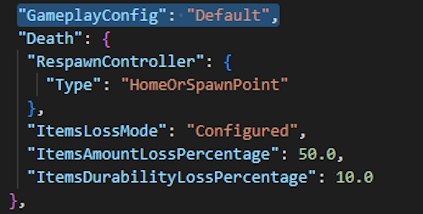
- Adjust the “ItemsLossMode” to your preference (“None”, “All”, or “Configured”).
- If you use “Configured”, you can also tweak the loss percentages.
- Click Save at the bottom of the page.
- Return to the main panel and Restart your server.
Troubleshooting
If your death penalty settings do not appear to be working in-game, the most common cause is forgetting to restart the server after saving. The config.json is only read on startup, so any changes require a full server restart to take effect. Stop the server from the main panel, wait for it to fully shut down, then start it again.
If you cannot locate the config.json file inside a world folder, the world may not have been generated yet. Start the server and let it run for a minute to generate the world files, then stop it again and retry via FTP. If the file still does not appear, confirm you are looking inside the correct world folder under universe > worlds > [YourWorldName].
If your server fails to start after editing config.json, the most likely cause is a formatting error in the file. Open the file via FTP, compare it carefully against the code block in Step 3 above, and check for missing commas, mismatched braces, or extra characters. For broader server issues, see our Hytale server troubleshooting guide.
Frequently Asked Questions
Can I set different death penalties for different worlds on the same server?
Yes. Each world has its own config.json file located in universe > worlds > [WorldName]. You can configure different ItemsLossMode values in each world’s file independently. Just remember to stop the server before editing and restart it after saving.
Does disabling fall damage affect the death penalty settings?
No. The death penalty settings in config.json only control what happens to your inventory when you die. Disabling fall damage is a separate setting that affects whether fall damage can kill you in the first place. The two settings work independently.
Now your server is configured exactly how you want it. Whether you are building a casual creative world or a punishing survival challenge, these death penalty settings give you full control over the respawn experience. Remember to restart the server any time you make changes to config.json for them to take effect.






















