


While playing on your own Valheim server, you might need to run some commands. Doing this requires you to enable and open the console. Whether you’re on Steam (PC), Xbox, or PlayStation, this is a requirement. Due to this, we’ve created this Apex Hosting guide to show you how to enable the console on Valheim and showcase some commands to get you started.
Enabling the Console
- Launch Valheim and click
Settingsfrom the menu. - In
Gameplay, toggle theEnable Consoleoption.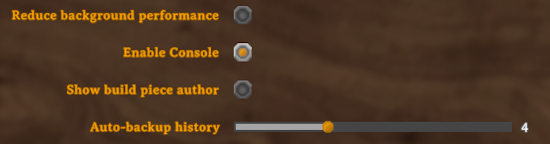
- At the bottom right, select
Okto save changes. - Open the console by pressing
F5on your keyboard.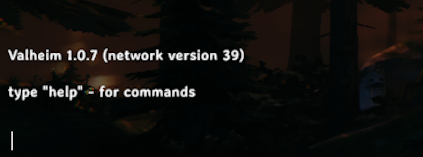
- (Optional): You can change the keybind in
Keyboard & Mouse.
Xbox & PlayStation
For those on console, you can open the console by doing the following:
- On PS5, hold
L1 + R1 + L2 + R2, then pressOptions. - On Xbox, hold
LB + RB + LT + RT, then pressMenu/Start.
Make sure to hold all shoulder buttons, then press the other button.
How to Use Valheim Commands
By opening the console in-game, you can begin typing commands – but some of them require you to become an admin. If you host your own Valheim server, then it’ll only take a few minutes.
Player Commands
| Player Command | Information |
|---|---|
/help [page] |
Used to see the available commands on the server. There are a total of 5 help pages. |
/s [message] |
Shouts a message in chat. |
/say [message] |
Says a message in chat. |
/w [player] [message] |
Whispers a message directly to a player. |
/ping |
Pings the server to measure latency. |
/nomap |
Toggles the map on and off. |
/noportals |
Toggles portals on the server. |
/fov [number] |
Changes your player’s field of view. The default is 120. |
/lodbias [number] |
Sets the draw distance for the server. The number can be set from 1 to 7. |
/maxfps [FPS] |
sets fps limit |
/info |
Displays current system information on the server. |
/resetknownitems |
reset character known items & recipes |
/resetsharedmap |
Removes shared map data from cartography table. |
/resetspawn |
Resets the spawn location. |
/respawn |
Kills and respawns the player who runs this command. |
/tutorialreset |
Resets all viewed tutorial messages. |
/tutorialtoggle |
Sets whether tutorials should appear. |
/bind [keycode] [command] |
Binds a custom command to a Unity keycode. |
/unbind [keycode] |
Clears all custom command binds for a specific Unity keycode. |
/printbinds |
Displays all current custom command binds. |
/printseeds |
Prints seeds and positions of nearby dungeons in-game. |
/resetbinds |
Removes all custom command binds. |
Admin Commands
| Admin Command | Information |
|---|---|
/ban [name/ip/userID] |
Bans that user from your server. |
/unban [name/ip/userID] |
Unbans that specified player on the server. |
/kick [name/ip/userID] |
Kicks that player out of your server. |
/banned |
Displays a list of all banned players on your server. |
/save |
Forces the server to save progress at that moment. |
/setworldmodifier [name] [value] |
Sets a world modifier slider value, such as difficulty or resource rate. |
/setworldpreset [name] |
Resets all world modifiers to a named preset. |
/resetworldkeys |
Resets all world modifiers to default. Does not reset gameplay progression keys. |
FAQ – Valheim Console
Why can’t I open the console in Valheim?
If you have not toggled Enable Console in the settings, then you cannot open the console. Make sure to do that from the main menu and click Ok so the changes are saved. Afterwards, press F5 on your keyboard to test it out. On consoles, make sure to hold down all the shoulder buttons and the options/menu button.
How do I use admin commands in Valheim?
You need to become an admin on your Valheim server before using these types of commands. To do that, you need to add your player ID to the adminlist.txt file via Config Files from your Apex server panel. Here’s an example of a Steam Player ID: V_76561198371917908. Other platforms use other identifiers, X_ for Xbox, S_ for PlayStation, N_ for Nintendo, A_ for GameCenter.
Why do some commands not work in Valheim?
If you’re trying to use a command that requires a player’s username, double check you are typing it correctly. You can also use their Player ID as a replacement too, e.g. 76561198371917908 or V_76561198371917908. If the command is an admin command, make sure you’re an admin. Otherwise, ensure you have correct permissions.






















