


Overview
Whether you’re wanting to install mods or upload worlds, setting up your Valheim server can be a difficult task for new owners. This is mainly caused by not understanding how to access and edit the game files, plus the overwhelming amount of them to tweak. For instance, any modifications require you to access the File Transfer Protocol (FTP) to properly install them in a specific directory on the Valheim server. Navigating through this database isn’t common knowledge, but we’ve designed our online panel to be as simple as possible for your convenience. However, you have the ability to use an external program to directly access these files from your computer. Regardless of your preferred method, we’ve created this Apex Hosting guide to show you how to make an FTP connection on your Valheim server and where important files are located.
Valheim FTP Connection

Establishing an FTP connection to your Valheim server requires your Password, used in our online panel. This allows you to quickly and easily access the game files to make any changes. Whether you’re wanting to download, upload, edit, or simply view documents, this area is needed for the process. However, there are some downsides to using this method. For example, you’re unable to download large files due to our system limitations. Server owners can bypass this by using a third-party service to access the FTP database, allowing for larger transfers. Using this requires extra information though, such as the IP Address, Port, Username, and password. Once connected, there will be lots of file directories to enter, but there are only a few important ones to understand. The subsections below will showcase each method’s process and where valuable documents are stored.
Online Panel
The first method is using our built-in system to access the database, which happens to be the easiest way. This is found by clicking the FTP File Access button in the main panel, then inputting your password. When you’re connected, you’ll immediately notice several file directories that contain useful documents. At this point, you can start downloading, uploading, or editing any of them. However, remember that there are limitations from our system’s design that prevent you from obtaining large files. This similar concept is applied for editing documents, as certain types aren’t viewable. Using the other FTP method is recommended for bypassing these limitations. Besides this, the following directions describe how to make this connection using our online panel.
- Head towards your Apex server panel and press the
FTP File Accessbutton.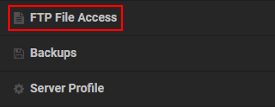
- Proceed to enter your password in the text field, then click
Login.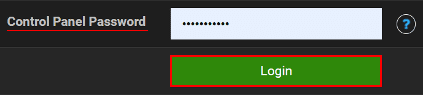
- Upon doing this, you’ll see all available server files to edit, download, or upload.
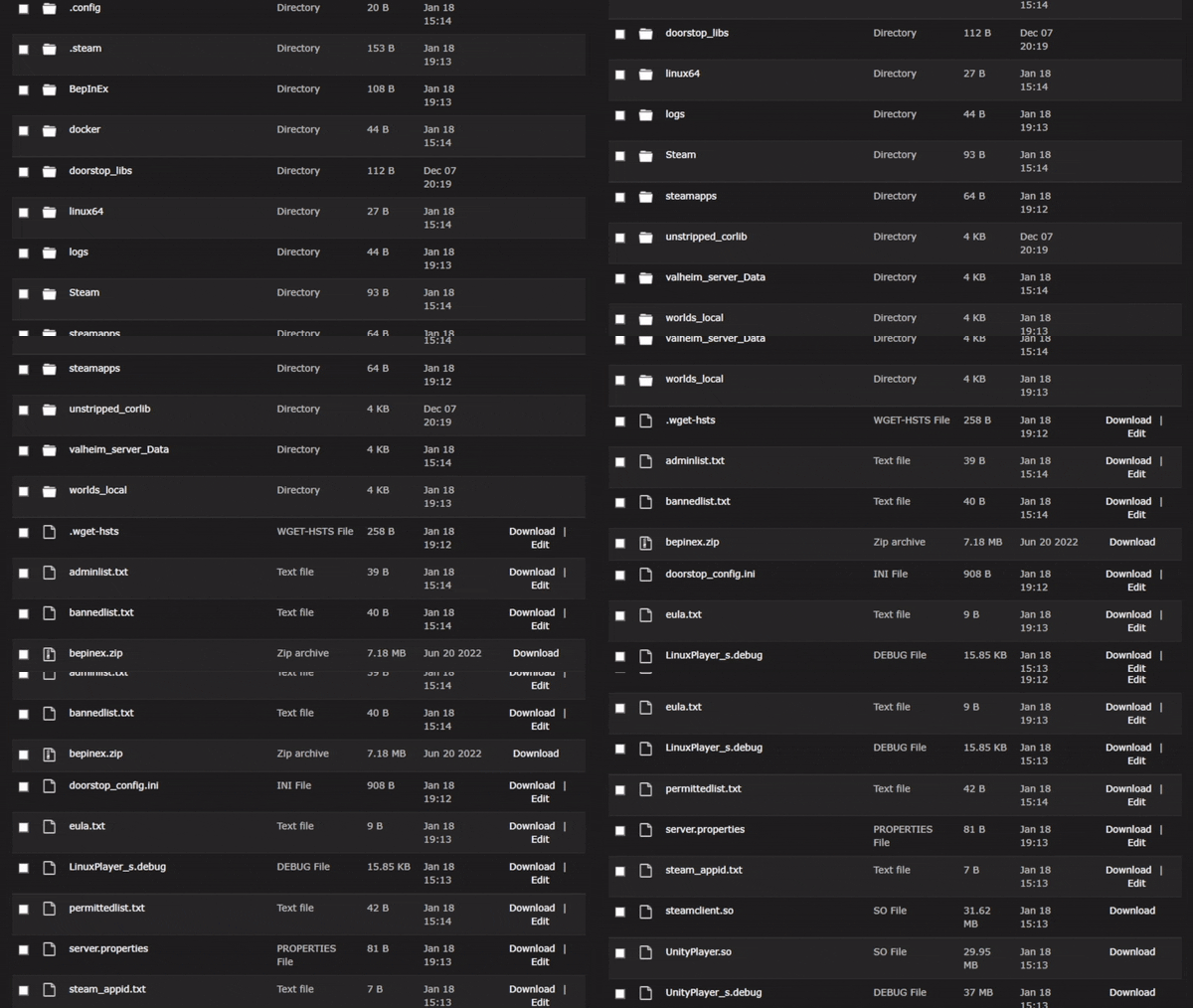
Important: Make sure to use the correct Server Profile for this process.
External Program
Another way to access your game files is using an external program that you can download. This requires your FTP login information to make the connection, which will give you better downloading and uploading capabilities. Services such as FileZilla or Cyberduck are great programs to use for these purposes, as they’re industry standard tools. In other words, these are completely safe and secure to use for your Valheim Server. Review the instructions below to get started making an FTP connection with these applications.
- Begin to download an FTP program, such as FileZilla, then install it.
- Once it’s finished, open the application to prepare for the connection.
- Navigate to the
FTP File Accessarea from the main server panel. - Copy the following:
FTP Address,Port,Username, andPassword.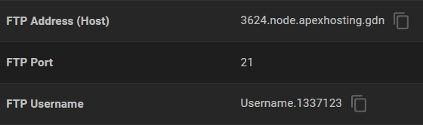
- Return to the third-party program, then enter your login credentials.
- Continue to press
Quickconnector a similar button to make the connection.
- Afterward, you should be able to view the directories to download or upload.
Important Files

When you’re connected to the FTP database through either of the above methods, you’ll notice many directory pathways. These contain your mods, saves, general server settings, and lots more. However, this depends on if you have Valheim Plus enabled or not. If you want this, then simply change your Game File to it in the main panel, then Restart the server to apply the changes. Using this version of the game supports modifications, making new pathways appear in the FTP database. As for other important areas, they can be accessed in Customizations and Config Files from the main panel. Regardless of what you have enabled, review the important folders down below to get started.

A popular way to backup your server is downloading the world files, as these can be re-uploaded to bring back an older version of it. This can be found in the …/worlds_local patchway, containing multiple instances of your save(s). Additionally, this applies to both vanilla and modded servers of Valheim. Make sure to keep track of your save names in the World section of the main panel, as they determine the file identifications in the directory.

Valheim Plus offers a wider range of additional features than the normal game, as it supports mods. These modifications are stored within the …/BepInEx/plugins pathway, while the general settings are in the …/BepInEx/config directory. The main file for the options is valheim_plus.cfg, containing many togglable functions. Remember, this doesn’t apply to vanilla servers since mods must be supported.
Common Issues
Occasionally, some server owners cannot establish any FTP connections despite the methods they use. This may happen due to incorrect login credentials, so make sure you’re entering valid information. Remember, the Username is not your panel account’s one since the FTP database has separate details. Entering everything correctly in your external program will work, but double-check your Password. However, you could be using the wrong panel account to access the game files.
Upon making a file transfer, there could be some hiccups along the process. This is caused by a number of factors, with one being sizing problems. Using programs like WinRAR or 7zip compresses your files into a single document to upload. Similarly, the online panel has a built-in compression system to do this for downloading them. Otherwise, there could be an issue with your internet speed for these kinds of processes.
Similarly to downloading and uploading issues, missing data can occur when they’re not compressed. Using zipping programs to make them into a single file will resolve the problem. However, you could be using an incorrect Server Profile for this process. Each profile has a unique directory to hold multiple instances of game documents. Navigate through the one you want in the database, then continue to make your desired changes.
Useful Links
Additional FTP Information
Uploading Existing Worlds on Valheim Servers
Installing Mods on a Valheim Server
How to Become a Valheim Server Admin






















