For years, Minecraft has been known as one of the world’s most popular video games. While many may think that this is due to the expansive features and seemingly endless possibilities in single-player, one of the main reasons is the ability to play Minecraft with your friends, even those who are far away.
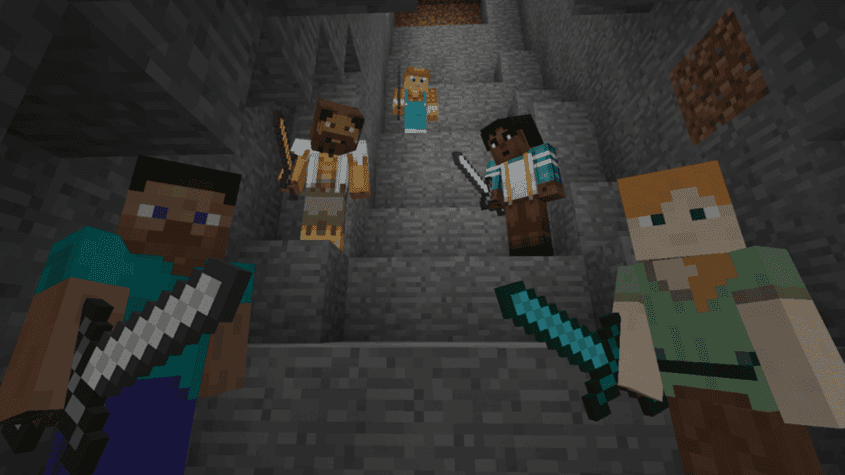
Minecraft singleplayer is great, but you can really expand your gameplay experience by playing multiplayer with others. There are several ways to play with friends, including LAN servers which let you connect with players on the same network as you, Realms which let you play across the globe, and servers, which is by far the most popular option since it lets you play modded Minecraft with your friends. You may be wondering how you can play Minecraft online and which option is best for you. That is why in this guide we’ll be breaking down the different ways to connect and play together.
How to Play Minecraft with Friends on PC
How to Join a LAN World in Minecraft
Minecraft Java Edition’s Multiplayer Options screen lets you open a singleplayer world to other players on your local network. A 2026 Java Edition update (26.2) replaced the older “Open to LAN” screen with this Multiplayer Options screen, but the core idea hasn’t changed: if a friend is at your house and connected to your Wi-Fi, you can set your world to the Local scope so they can join. The screen offers two settings, Off (the default, where nobody can join) and Local (only players on your local network can join), so LAN play is still just as accessible as before.
How to set your world to Local
- Open Minecraft, and join your singleplayer world.
- Press the escape key to open your game menu.
- Open the world’s multiplayer options screen, select the Local scope, and choose whether other players can use cheats and what game mode they join in.
How to join a Local multiplayer world
- In Minecraft, click on the “Multiplayer” tab.
- Scroll to the bottom of the list. Minecraft scans for games being hosted on your local network automatically.
- Once it finds the world, you’ll see a listing with your friend’s username and the world name under it.
- Double click it to join, or select it and press “Join Server”.
If you and your friends aren’t on the same network and don’t want to set up a dedicated server, our guide to playing without a dedicated server covers VPN-style workarounds, like Hamachi, that can bridge that gap.
The New Friends List (Java Edition)
Java Edition also picked up a built-in Friends List in 2026, giving PC players a Bedrock-style way to manage online friends without leaving the game. You can open it from the Friends button on the title screen or pause menu, or by pressing O.
- Search for a friend by their Java Edition profile name and send a friend request.
- Accept or decline incoming requests from the Requests tab.
- Check the Friends tab any time to see who’s Offline, Online, or in a world.
Mojang originally planned for the Friends List to let you invite friends straight into your world over the internet without a server, using a direct peer-to-peer connection. That joining function was pulled before general release and isn’t currently available. For now, the Friends List is a way to track who’s playing, not a substitute for LAN, a server, or Realms when you want to actually play together remotely.
How to Make a Minecraft Server for Friends
Owning a Minecraft server is one of the best ways for you and your friends to connect with each other through Minecraft. Having your own server stands on top of the other options for a few reasons: You can set it to any version of Minecraft, you can modify it past Vanilla, and servers don’t cap the number of players who can join (of course, you would need a powerful server depending on the number of players you want online.) Playing Minecraft Java Edition with friends on a modded server is one of the most flexible, and fun, ways to enjoy the game.
Keep in mind that you cannot join a Bedrock Edition server off of your Xbox, PS4, Nintendo Switch, or any other similar platform. It can only be joined from PC (Bedrock Edition), iOS, and Android.
The steps below walk through creating a server through Apex Hosting. You can also create one on your home computer, but this is not recommended since many factors go into owning a server, such as DDoS protection, 24/7 uptime, and support. All of these are provided by Apex.
How to create a Minecraft Server
- Head to the pricing page on our website. You are going to see a few different plans here. We have a guide that goes over how much ram you will need here.
- Once you decide what plan you want, go ahead and click on “Order Now”, then proceed to follow the instructions.
- Once you have paid for your server, you will receive an email with all of your account information for our Game Panel. With Apex, the server is created for you.
- On the Game Panel, you will see your IP address. This can be used to connect to the server.
How to join a Minecraft Java Edition Server


Open Minecraft and go into the “Multiplayer” tab.
- Towards the bottom, click on “Add Server”. Put any name under “Server Name” and then enter the server IP address and port, then press “Done”.
- After pressing done, this will take you back to the multiplayer tab, you should see the server now listed. Select the server and press “Join Server”. You should now be connected to the server.
How to join a Minecraft Bedrock Edition Server
- Open Minecraft and press “Play”.
- Select the “Servers” tab, then press “Add Server”.
- Fill in any name for “Server Name”, then type in the IP address without the port into the “Server Address” slot. After that, fill in the “Port” slot with your server port.
- Press “Save”, then scroll down and click on the server to join it.
Realms
Alternatively, if you do not want to use a Minecraft server host, you can use Minecraft’s built-in Realms. This is not recommended, as Realms does not allow the use of mods/plugins, it limits player slots significantly and restricts who can and cannot join, and it’s pricey for what you get. On Bedrock Edition, the higher Realms Plus tier adds Marketplace Pass, a rotating catalog of creator-made worlds, skins, and other Marketplace content, but you still don’t get any of the benefits that come with server hosting, such as 24/7 support, one-click modpack and gametype installations, or the ability to create a public world that anyone can join. However, if you’d rather not deal with server hosting at all, Realms remains the simplest official option straight from the game menu on any platform, including Xbox, PS4, and Switch.
How to create a Realms Server for Java Edition
- Open Minecraft and press “Minecraft Realms”
- To the bottom of Minecraft, click on “Buy Realm”. This will take you to Minecraft’s website where you can set up your subscription.
- If you already had a Realm setup, you will see a listing with it. You can press “Subscribe” which will also take you to Minecraft’s website so you can set up the Realms.
- Once you have paid for it, head back to the Realms tab in Minecraft and you should see the listing with a green light. Press it and then click the “Play” button.
How to join a Realms Server in Java Edition
- To join a Realms Server, you must have been invited.
- To invite someone to your Realms, go to Configure Realms, then press the Players tab.
- Click on the + and type in your friend’s username to send them an invitation.
- To the top of your Realms page, you should see a little icon named “New Invitations!”. If you click that, you can see the Realms you have been invited to. Simply select it and press “Play”.
How to create a Realms Server for Bedrock Edition
- Open Minecraft, and click “Play”.
- On this page, you will need to be in the “Worlds” tabs.
- If you are signed in to a Microsoft account, you can start a new Realms by clicking on “Create New”. Once you click that, you can either create a new world or use a premade Realms world.
- If you aren’t signed in, you can use the free 30-day trial option. Locate the section named “Realms” at the top and click on the listing for your Realm.
- Click on “Buy Now” and follow the instructions to pay for your first month.
How to join a Realms Server in Bedrock Edition
- You need to be invited to a Realms in order to join it.
- You can invite a player by clicking on the pencil icon next to your Realm’s name, then select “Members”.
- Click the “Share” tab which will bring up an invite link. Send this link to your friends. This will prompt them to sign in/sign up to their Microsoft account, then it will add them to your Realm’s whitelist.
- If you are invited to your friend’s Realm, click on the “Friends” tab and you should see a listing, select it to join.
Conclusion
It’s time to jump into the world of Minecraft along with your friends! With so many different ways to join, you may have trouble deciding which is the best option for you. If you want to just play Vanilla Minecraft with people who live in the same house as you, the LAN option is the best, and Java Edition’s new Friends List makes it easy to see who’s around, even though it doesn’t yet let you invite them into your world remotely. If you want to play Vanilla Minecraft with a few friends across the world, either Realms or a server is best. Having the server would be more cost-effective than Realms, as servers are generally going to be cheaper than the Realm’s starting price at $3.99 for just 2 players. Minecraft Servers also allow for customizations such as plugins and mods, and for expansion globally so your server can attract more than just your group of friends. If you host your server with Apex, you also get access to our premade gametypes, modpacks, 24/7 support, and customized game panel. All of this may seem like a lot, but once you get the hang of it, it’s not too bad. Playing Minecraft with friends adds a whole new experience to the game.